---
title: How to create reports of email validations in HubSpot using app events
description: Koalify adds an app event in HubSpot every time an email address is validated. You can use these app events in HubSpot custom reports to track validation activity over time and see how clean the emails coming into your CRM really are.
---
[Skip to content](https://koalify.io/email-validation-knowledge-base/how-to-create-reports-of-email-validations-in-hubspot-using-app-events#main-content)

Open main navigation
Close main navigation
- [GET STARTED FREE](https://api.email.koalify.io/hubspot/install?utm_source=koalify&utm_medium=knowledgebase&utm_campaign=navigation)
[GET STARTED FREE](https://api.email.koalify.io/hubspot/install?utm_source=koalify&utm_medium=knowledgebase&utm_campaign=navigation)
Search the Email Validation Knowledge Base 🐨
- There are no suggestions because the search field is empty.
1. [Koalify Email Validation Knowledge Base](https://koalify.io/email-validation-knowledge-base?hsLang=en)
2. [Validation insights](https://koalify.io/email-validation-knowledge-base/validation-insights?hsLang=en)
# How to create reports of email validations in HubSpot using app events
## Koalify adds an app event in HubSpot every time an email address is validated. You can use these app events in HubSpot custom reports to track validation activity over time and see how clean the emails coming into your CRM really are.
By using Koalify email validation app events in HubSpot reports, you can:
- See the number of email validations over time
- See how many addresses come back valid, invalid, risky or unknown
- Understand whether validations were triggered from a workflow or the Koalify card
- Spot which workflows or users are running the most validations
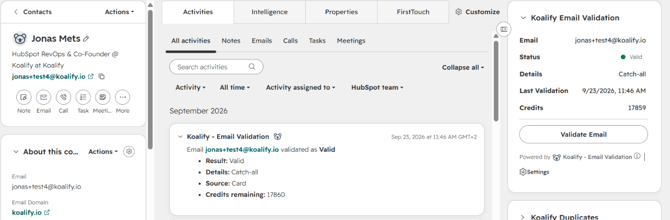
### 1. Create a custom report
- In your HubSpot account, create a Custom Report.
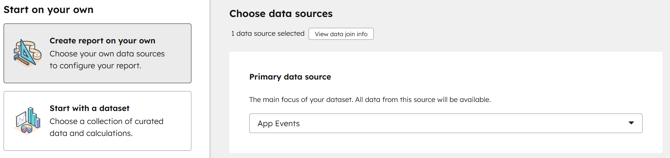
- Choose **App Events** as the primary data source for your report.
### 2. Select the email validation app event
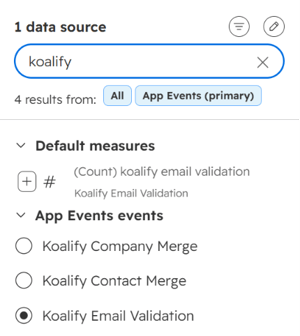
Choose the **Koalify Email Validation** app event. Each event represents one email address validated on a contact record.
### 3. Configure the chart
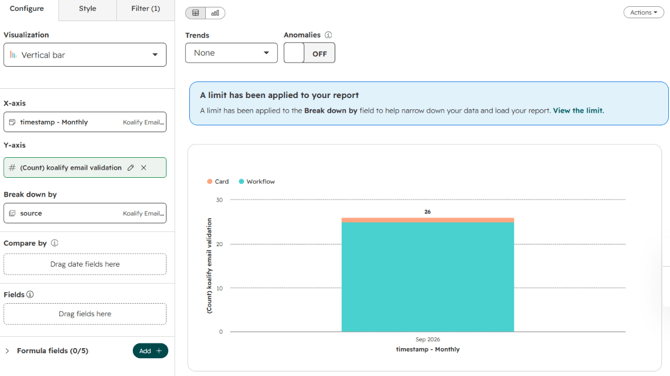
Set up the chart to show the number of email validations over time.
**X-axis**
- Timestamp, grouped by weekly or monthly
**Y-axis**
- Count of Koalify Email Validation
**Break down by**
Optionally, add a breakdown to compare validation activity by:
- Validation Result, for Valid vs Invalid vs Risky vs Unknown
- Source, for Card vs Workflow
- User Name
- Workflow Name
To keep the report easy to read, start with one breakdown at a time. Validation Result is usually the most useful starting point: a stacked bar chart by month shows at a glance whether the share of bad addresses entering HubSpot is going up or down.
### 4. Edit the filters to refine the events shown
Use filters to control which app events are included in the report. For example:
- Event timestamp is this year
- Validation Result, Source, User Name, Workflow Name
You can also filter on a single result. Filtering to **Invalid** only, broken down by Workflow Name, shows you which forms, imports or integrations are sending the most unusable email addresses into your CRM, so you know where to fix the problem at the source.
### 5. Edit the fields to improve the drill-down view
Choose the fields that appear in the drill-down view so you can review the individual events behind the chart more easily.
Recommended fields include:
- Timestamp
- Contact name
- Email address
- Validation Result
- Reason (for example: mailbox doesn't exist, disposable domain, catch-all)
- Source
- User Name
- Workflow Name
This makes it easier to see exactly which contacts were flagged and why, and to act on them, for example by suppressing invalid addresses from your next campaign.
- [Getting started](https://koalify.io/email-validation-knowledge-base/getting-started?hsLang=en)
- [Validation card](https://koalify.io/email-validation-knowledge-base/validation-card?hsLang=en)
- [Workflow validation](https://koalify.io/email-validation-knowledge-base/workflow-validation?hsLang=en)
- [Validation insights](https://koalify.io/email-validation-knowledge-base/validation-insights?hsLang=en)
- [Validation activation](https://koalify.io/email-validation-knowledge-base/validation-activation?hsLang=en)
- [Account & billing](https://koalify.io/email-validation-knowledge-base/account-billing?hsLang=en)
[](https://koalify.io/?hsLang=en)
HubSpot deduplication and email validation
Copyright © 2026, Koalify