---
title: How to create reports of Koalify merges in HubSpot using app events
description: Learn how to build HubSpot reports with Koalify app events to track merge activity over time by source, object type, workflow, and user.
---
[Skip to content](https://koalify.io/knowledge-base/how-to-create-reports-of-koalify-merges-in-hubspot#main-content)
![koalify\_rectangle\_-3.png\]](https://koalify.io/hs-fs/hubfs/koalify_rectangle_-3.png?width=50&height=50&name=koalify_rectangle_-3.png)
Open main navigation
Close main navigation
- [GET STARTED FREE](https://api.koalify.io/hubspot/install?utm_source=koalify&utm_medium=knowledgebase&utm_campaign=navigation)
[GET STARTED FREE](https://api.koalify.io/hubspot/install?utm_source=koalify&utm_medium=knowledgebase&utm_campaign=navigation)
Search the Deduplication Knowledge Base 🐨
- There are no suggestions because the search field is empty.
1. [Koalify Knowledge Base](https://koalify.io/knowledge-base?hsLang=en)
2. [Duplicate overview](https://koalify.io/knowledge-base/duplicate-overview?hsLang=en)
# How to create reports of Koalify merges in HubSpot using app events
## Koalify adds app events in HubSpot whenever a record is merged. You can use these app events in HubSpot custom reports to track merge activity over time and understand where merges are happening.
By using Koalify app events in HubSpot reports, you can:
- See the number of merges over time
- Understand whether merges were triggered from a workflow or the Koalify card
- Track merge activity by object type, such as contacts, companies, deals, or tickets
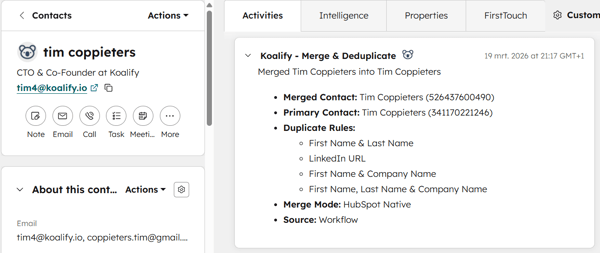
### 1. Create a custom report
- In your HubSpot account, create a **Custom Report**.
- Choose **App Events** as the primary data source for your report.
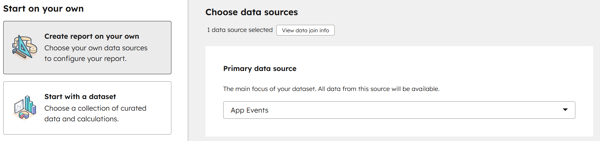
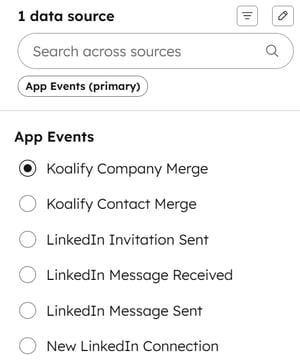
### 2. Select the app event you want to use
Choose the Koalify app event that matches the object type you want to report on:
- - **Koalify Contact Merge**
- **Koalify Company Merge**
- **Koalify Deal Merge**
- **Koalify Ticket Merge**
### 3. Configure the chart
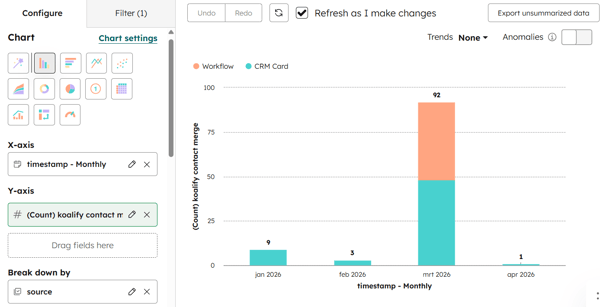
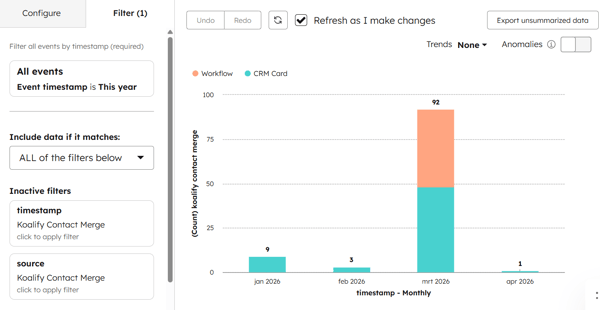
Set up the chart to show the number of Koalify merges over time.
**X-axis**
- **Timestamp**, grouped by **weekly** or **monthly**
**Y-axis**
- **Count of app events**, for example **Count of Koalify Contact Merge**
**Break down by**
Optionally, add a breakdown to compare merge activity by:
- **Source** for Card vs Workflow
- **Merge Mode** for Native vs Record-Preserving
- **User Name**
- **Workflow Name**
To keep the report easy to read, start with one breakdown at a time.
### 4. Edit the filters to refine the records shown
Use filters to control which app events are included in the report.
For example:
- **Event timestamp** is this year
- **Source, Merge Mode, User Name, Workflow Name**
You can also filter by a specific source, such as **Card** or **Workflow**, depending on the type of merge activity you want to analyze.
### 5. Edit the fields to improve the drill-down view
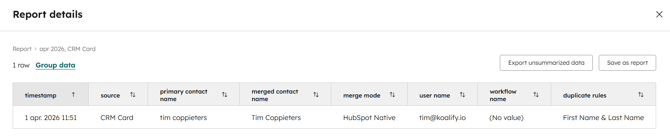
Choose the fields that **appear in the drill-down view** so you can review the individual events behind the chart more easily.
Recommended fields include:
- **Timestamp**
- **Primary record name**
- **Merged record name**
- **Merge Mode**
- **Source**
- **User Name**
- **Workflow Name**
- **Duplicate Rules**
This makes it easier to understand the details behind each merge event
- [Getting Started](https://koalify.io/knowledge-base/getting-started?hsLang=en)
- [Koalify settings](https://koalify.io/knowledge-base/koalify-settings?hsLang=en)
- [Duplicate overview](https://koalify.io/knowledge-base/duplicate-overview?hsLang=en)
- [Duplicate cards](https://koalify.io/knowledge-base/duplicate-cards?hsLang=en)
- [Bulk merging](https://koalify.io/knowledge-base/bulk-merging?hsLang=en)
- [Account & Billing](https://koalify.io/knowledge-base/account-billing?hsLang=en)
[](https://koalify.io/?hsLang=en)
HubSpot deduplication and email validation
Copyright © 2026, Koalify