---
title: How to create segments of Koalify merged records in HubSpot
description: Learn how to create HubSpot segments of records merged by Koalify using app events. Track merged contacts, companies, deals, tickets, and custom objects.
---
[Skip to content](https://koalify.io/knowledge-base/how-to-create-segments-of-koalify-merged-records-in-hubspot#main-content)
![koalify\_rectangle\_-3.png\]](https://koalify.io/hs-fs/hubfs/koalify_rectangle_-3.png?width=50&height=50&name=koalify_rectangle_-3.png)
Open main navigation
Close main navigation
- [GET STARTED FREE](https://api.koalify.io/hubspot/install?utm_source=koalify&utm_medium=knowledgebase&utm_campaign=navigation)
[GET STARTED FREE](https://api.koalify.io/hubspot/install?utm_source=koalify&utm_medium=knowledgebase&utm_campaign=navigation)
Search the Deduplication Knowledge Base 🐨
- There are no suggestions because the search field is empty.
1. [Koalify Knowledge Base](https://koalify.io/knowledge-base?hsLang=en)
2. [Duplicate overview](https://koalify.io/knowledge-base/duplicate-overview?hsLang=en)
# How to create segments of Koalify merged records in HubSpot
## Use Koalify app events to create HubSpot segments of records that were merged using Koalify.
When Koalify merges a record in HubSpot, it adds an app event to that record. You can use these app events to build reports and segments for merged contacts, companies, deals, tickets, and custom objects.
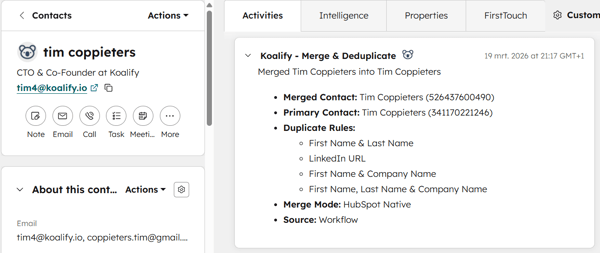
### 1. Create a New Segment
- In your HubSpot account, go to CRM \> Segments.
- Click **Create segment** in the top-right corner.
- **Choose a segment type**: Contact, Company, Deal, Ticket or Custom Object
- **Enter a name** for your segment: Koalify Merged Contacts/Companies/ ...
### 2. Apply Filters for Koalify merged records
Add filters so the segment only includes records merged by Koalify.
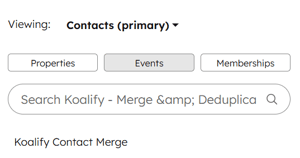
- Click **Events** instead of properties
- In the **App events section,** choose Koalify - Merge & Deduplicate
- Select the **App Event Name,** Koalify Contact/Company/... Merge
### 3. Edit and save the segment
- HubSpot’s default event filter suggestion will automatically show all records merged by Koalify. You can refine the filters further if needed. For example, you can narrow the segment to records that were:
- merged recently
- merged from the Koalify card or workflow
- merged by a specific [duplicate rule](https://koalify.io/knowledge-base/how-to-create-custom-rules-to-identify-hubspot-duplicates?hsLang=en)
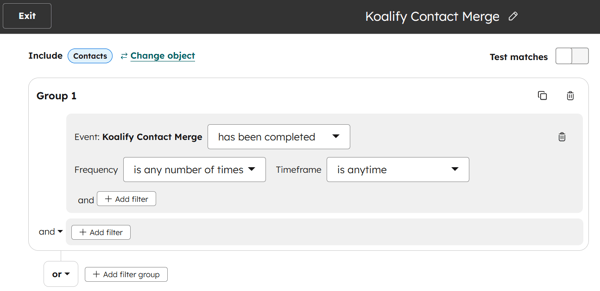
- Once your filters are set, click **Next**.
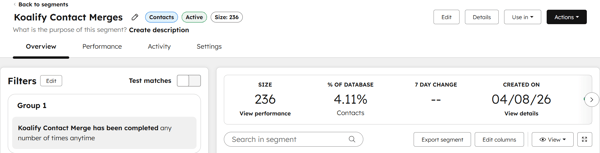
- Save the segment as an **active segment** so it stays updated automatically.
### Use cases
A segment of Koalify merged records can help you:
- review recently merged records
- track merges by a workflow or user
- export merged records for auditing
- [Getting Started](https://koalify.io/knowledge-base/getting-started?hsLang=en)
- [Koalify settings](https://koalify.io/knowledge-base/koalify-settings?hsLang=en)
- [Duplicate overview](https://koalify.io/knowledge-base/duplicate-overview?hsLang=en)
- [Duplicate cards](https://koalify.io/knowledge-base/duplicate-cards?hsLang=en)
- [Bulk merging](https://koalify.io/knowledge-base/bulk-merging?hsLang=en)
- [Account & Billing](https://koalify.io/knowledge-base/account-billing?hsLang=en)
[](https://koalify.io/?hsLang=en)
HubSpot deduplication and email validation
Copyright © 2026, Koalify