![koalify_rectangle_-3.png]](https://koalify.io/hs-fs/hubfs/koalify_rectangle_-3.png?width=50&height=50&name=koalify_rectangle_-3.png)
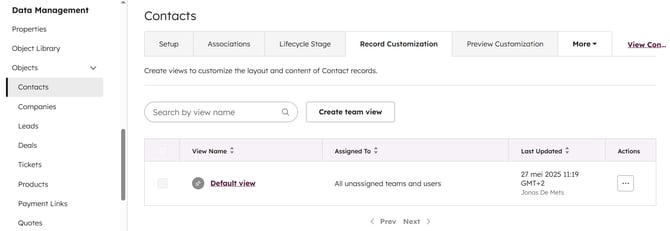
1. Open Record Customization Settings
Option A
- In your HubSpot account, navigate to any Contact record.
- Click Customize in the top right corner.
Option B
- In your HubSpot account, click the ⚙️ settings icon in the main navigation bar.
- Go to Objects and select Contacts.
- Open the Record Customization tab.
2. Add the Koalify Email Validation Card
- Click Default view (or select a specific team view if you prefer)
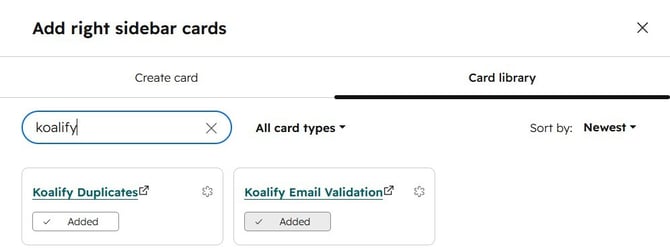
- In the right sidebar section, click the ➕ Add card button.
- Open the Card Library and search for Koalify.
- Select Koalify Email Validation to add the Koalify card.
3. Position the Koalify Email Validation Card
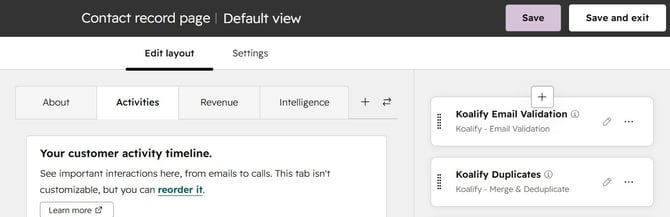
- New cards are added to the bottom of the sidebar by default. To make the card easier to find, drag it higher up in the list.
What Happens Next?
Once enabled, the Koalify Email Validation Card will appear in the right-hand sidebar of your contact records. From there, you can:
- Validate any contact's email address in one click
- See the validation status immediately: Valid, Invalid or Unknown
- Re-validate at any time after an email address is updated
All without leaving HubSpot.
For full details on reading and using validation results, see our knowledge base article on how to validate a contact's email using the Koalify Email Validation Card.