![koalify_rectangle_-3.png]](https://koalify.io/hs-fs/hubfs/koalify_rectangle_-3.png?width=50&height=50&name=koalify_rectangle_-3.png)
When Koalify adds a new feature, it sometimes needs extra permissions (scopes) in your HubSpot portal. HubSpot doesn't grant new scopes to an app you've already installed, so you need to reinstall Koalify to add them. It takes about two minutes.
Many of these scopes are optional in HubSpot, and optional scopes take two steps. First you allow them in your portal's data permissions, then you tick them on the install screen. If you skip the first step, the checkboxes stay greyed out, which is where most people get stuck.
Example used in this guide: the Merge App Objects scopes Koalify needs to merge records. The steps are the same for any other optional scope. Only the section you enable in Step 2 changes.
You don't need to uninstall Koalify first. You reinstall over your existing connection using the install link.
Step 1: Open the install link
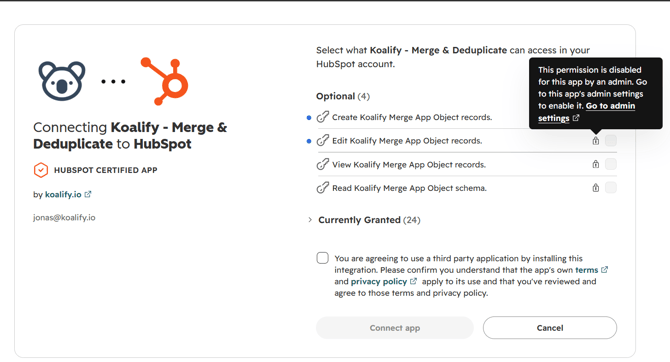
Open the Koalify install link and choose the HubSpot portal you want to update. You'll see the list of scopes Koalify is requesting, including any new optional scopes.
You won't be able to tick the optional checkboxes yet. Hover over one and HubSpot tells you why: the scope first has to be allowed in your portal's admin settings.
Leave this tab open. You'll come back to it in Step 3.
Step 2: Allow the new scopes in HubSpot's data permissions
In a second tab, go to your HubSpot admin settings and allow the scopes Koalify is asking for. You need to be a HubSpot Super Admin, or have permission to install apps and edit data permissions in the portal.
- Open Admin settings in HubSpot. Click the settings icon in the top navigation bar.
- Select the Data permissions tab. It's the third tab.
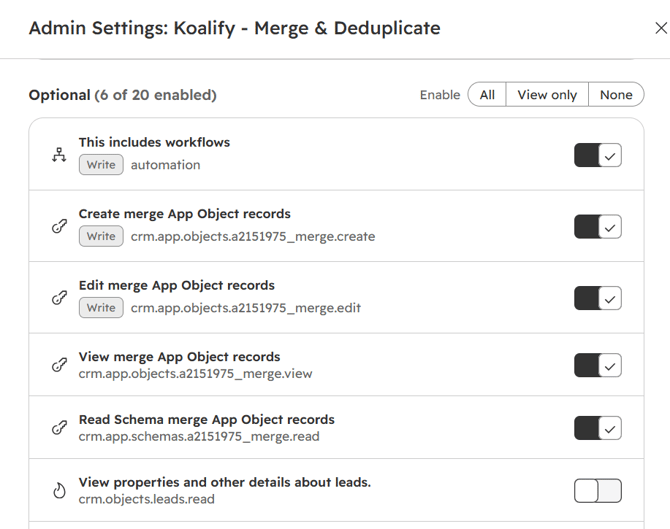
- Find the section for the scopes you're adding. In our example, scroll to the bottom to the Merge App Objects permissions.
- Enable each scope Koalify asked for. In our example, that's all four merge scopes, including Create a merged object record.
- Click Save.
Only enable the scopes Koalify asked for and leave the rest off. You can come back and change this at any time.
Step 3: Refresh the install screen and connect
Go back to the tab with the Koalify install screen.
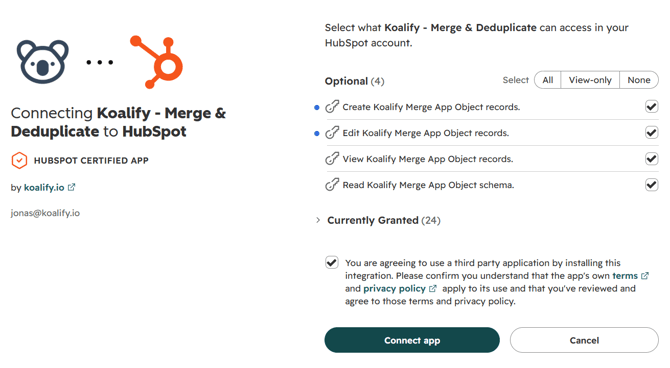
- Refresh the page. The checkboxes only unlock after a refresh, so this step matters.
- Tick the checkbox next to each new scope.
- Click Connect app to finish the reinstall.
That's it. Koalify now has the permissions it needs, and the feature that needed them is ready to use.
Troubleshooting and FAQ
The checkboxes are still greyed out after I saved the data permissions. Refresh the install screen. It doesn't pick up the new permissions until you reload the page. If they're still locked, check that you saved every scope Koalify asked for (in our example, all four under Merge App Objects).
I can't see the Data permissions tab. You need Super Admin rights, or a user permission that lets you manage apps and data access. Ask a Super Admin in your portal to complete Step 2, then finish Step 3 yourself.
Do I need to enable the other optional scopes? No. Only enable the scopes Koalify asks for. If a future feature needs more, we'll let you know and you can repeat these steps.
Why do I have to do this at all? HubSpot now asks admins to approve optional scopes at portal level before any app can request them. It's a HubSpot security change, and it applies to every app that needs these permissions, not just Koalify.
Still stuck? Email us at support@koalify.io or book a quick call, and we'll walk through it with you on screen.