![koalify_rectangle_-3.png]](https://koalify.io/hs-fs/hubfs/koalify_rectangle_-3.png?width=50&height=50&name=koalify_rectangle_-3.png)
When Koalify merges a record in HubSpot, it adds an app event to that record's timeline. Next to that, Koalify also creates a Koalify Merge app object for each merge. Because all Koalify Merge records sit together in one overview, you can filter them, review them, and select the ones you want to unmerge in bulk.
1. Open a Koalify Merge record
- In your HubSpot account, go to CRM > Koalify Merges.
- Click a merge to open its Koalify Merge record.
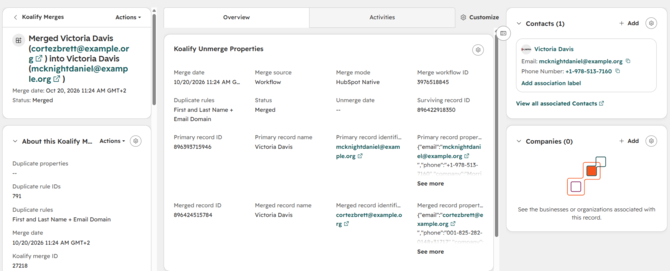
2. Review the merge details
Each Koalify Merge record contains a detailed log of how the records were merged.
Merge details
- Merge Date: when the records were merged
- Merge Source: whether the merge was done from a Workflow, the CRM card, or the Agent
- Merge Mode: Native (HubSpot's merge API) or Record-Preserving (Koalify's workaround)
- Workflow ID: the workflow that merged the records, if the merge was done from a workflow
- User ID: the user that merged the records, if the merge was done from a CRM card
- Duplicate Rules: the duplicate rules in place when the records were merged
- Status: Merged, Unmerging, Unmerged or Unmerge Failed
- Unmerge Date: when the records were unmerged
- Unmerge Error: the reason an unmerge failed
- Surviving Record ID: the record that remains after the merge, or the newly created record
- Object Type: Contacts & Compnies
Primary record
- Record ID and Name of the primary record
- Primary Record Identifier: usually the email address for contacts or the domain for companies
- Property values of the primary record at the time of the merge
Merged record
- The same information for the record that was merged into the primary record
Restored record
- Record ID of the restored record after an unmerge
3. Filter merges in a view
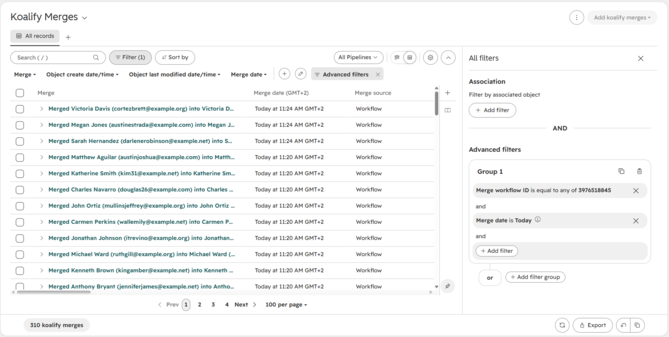
You can use the Koalify Merge properties to filter the overview, for example to find merges done by a workflow that merged records incorrectly.
- In CRM > Koalify Merges, click Advanced filters.
- Add the filter Workflow ID is equal to any of the workflow(s) that merged the records.
- Add the filter Merge Date, for example Today if the workflow just ran.
- Click Save view to keep the filtered overview.
You can now review these merges and unmerge them.
Use cases
The Koalify Merge object can help you:
- find merges from a specific workflow and unmerge them in bulk
- review the property values of both records before they were merged
- track merges by source: Workflow, Koalify card or Agent
- spot unmerges that failed