![koalify_rectangle_-3.png]](https://koalify.io/hs-fs/hubfs/koalify_rectangle_-3.png?width=50&height=50&name=koalify_rectangle_-3.png)
Merges happen fast. You're clearing a duplicate card, you're not paying full attention, and you merge two records that shouldn't have been merged. HubSpot has no native way to undo this. But if the merge was done through Koalify, you can unmerge it directly from the record.
This guide picks up at the point where you've already spotted the mistake and you're looking at the incorrectly merged record.
1. Open the Koalify app event on the merged record
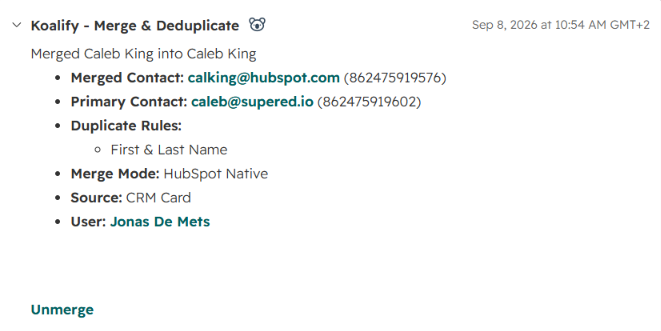
On the merged record, find the Koalify app event in the activity timeline. This event is the audit trail for the merge. It shows you exactly what happened, so you can confirm this was a mistake before you undo anything.
The app event shows you:
- The two email addresses that were on the original records
- The duplicate rule that flagged the pair
- How the merge was triggered (in this case, from the duplicate card)
Take a moment to read this before acting. It tells you whether you're looking at a genuine bad merge or two records that were correctly combined.
2. Click Unmerge and review the properties
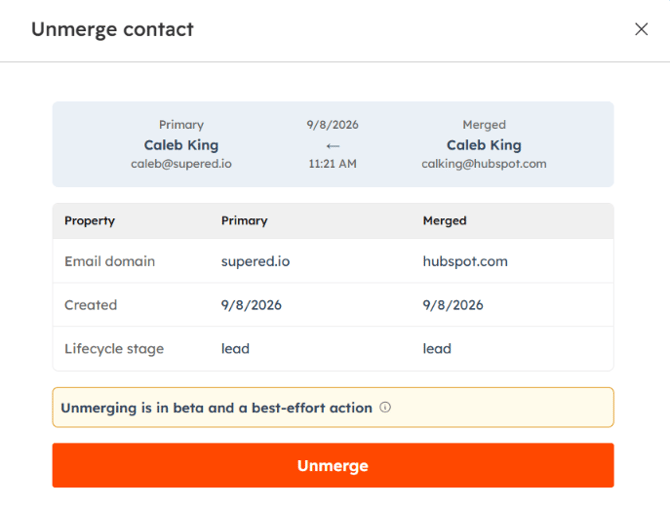
In the app event, click the Unmerge option. Koalify shows you the different property values that will be split back out across the two records.
Review these before you go any further. This is your chance to confirm the two records really are distinct and that unmerging is the right call.
3. Confirm the unmerge (and mark as non-duplicates)
Click Unmerge to confirm. At this point Koalify also lets you record the two records as non-duplicates in the same step.
Do this. It matters. If you leave the records flagged as duplicates, your rules will simply match them again and your automation may re-merge them, putting you right back where you started. Marking them as non-duplicates tells Koalify to leave this pair alone from now on.
.png?width=670&height=472&name=Confirm%20the%20unmerge%20(and%20mark%20as%20non-duplicates).png)
4. Open the recreated record
Once the unmerge is confirmed, Koalify recreates the record that was merged away, so you can open it back up in HubSpot. The two records now exist separately again, each with its correct associations.
5. Check the rejected duplicates in the duplicate card
To confirm everything landed correctly, open the Koalify duplicate card on the record. The pair you just unmerged will now appear under rejected duplicates. In the example, that's the version of Caleb King at Supered.
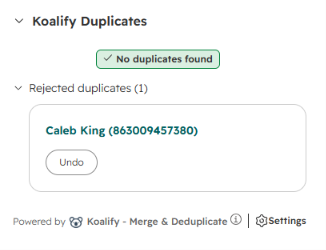
That's it. The records are separate again, and Koalify knows not to flag them as a duplicate pair in future.