

HubSpot users often model company hierarchies with parent-child relationships. That works well when you need to show that one legal entity rolls up to another, such as a holding company and its regional subsidiaries.
But parent-child relationships only tell part of the story.
In many portals, teams also want to relate child accounts to each other. If Acme US, Acme UK, and Acme Germany all sit under Acme Group, sales and service teams may want each regional entity to be visible as a sibling company of the others. That makes it easier to understand account structure, coordinate ownership, spot whitespace, and report on related entities.
HubSpot supports custom company-to-company association labels, and those labels can be used in workflows and other HubSpot tools.
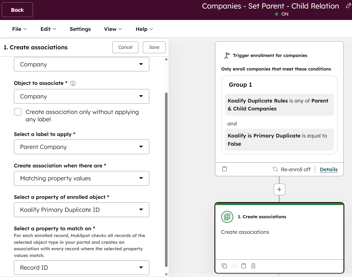
Prerequisite: parent-child associations need to be in place first. This approach works by finding companies that share the same parent and linking them to each other. If your parent-child hierarchy is not set up yet, start with the guide on automating parent-child company associations in HubSpot before coming back here.
This article walks through a simple way to set that up:
- Create custom company-to-company association labels for sibling relationships.
- Create a company-based workflow that sets the sibling association when two companies share the same parent Company.
Why create sibling company associations?
A parent-child association tells you who rolls up to whom. A sibling association tells you which entities belong together at the same level.
That is useful when:
- multiple subsidiaries share the same procurement or legal umbrella
- regional sales teams need visibility into related accounts
- CSMs want to understand the wider account family
- ops teams want better reporting on related child entities
In short:
- Parent-child associations model hierarchy
- Sibling associations model peer relationships within that hierarchy
Step 1: Create a custom company-to-company association label
Start by creating a custom company-to-company association label in HubSpot.
For most portals, a simple symmetric label pair works best:
- Sibling company and Sibling company
You can also use "Related subsidiary" or "Peer entity", but Sibling company tends to be the most intuitive for end users and is neutral across industries.
Keep the naming simple. This label will appear on company records, in workflow actions, and in reporting.
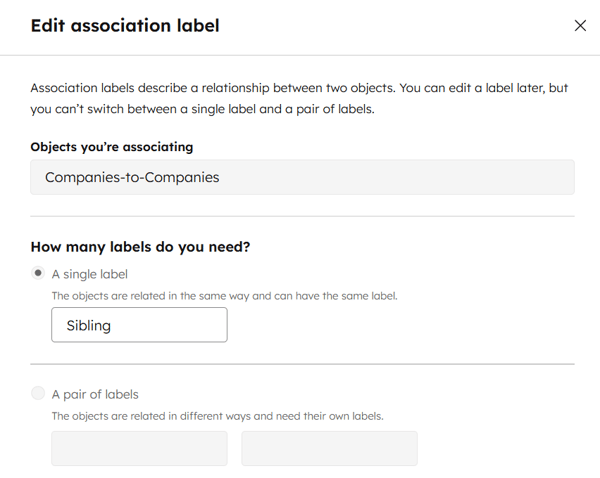
How to create the label
In your association label settings:
- create a new company-to-company label
- use the same value on both sides of the relationship
- keep the naming simple so the label is easy to understand in record views, workflows, and reporting
Step 2: Create a workflow to set the sibling association
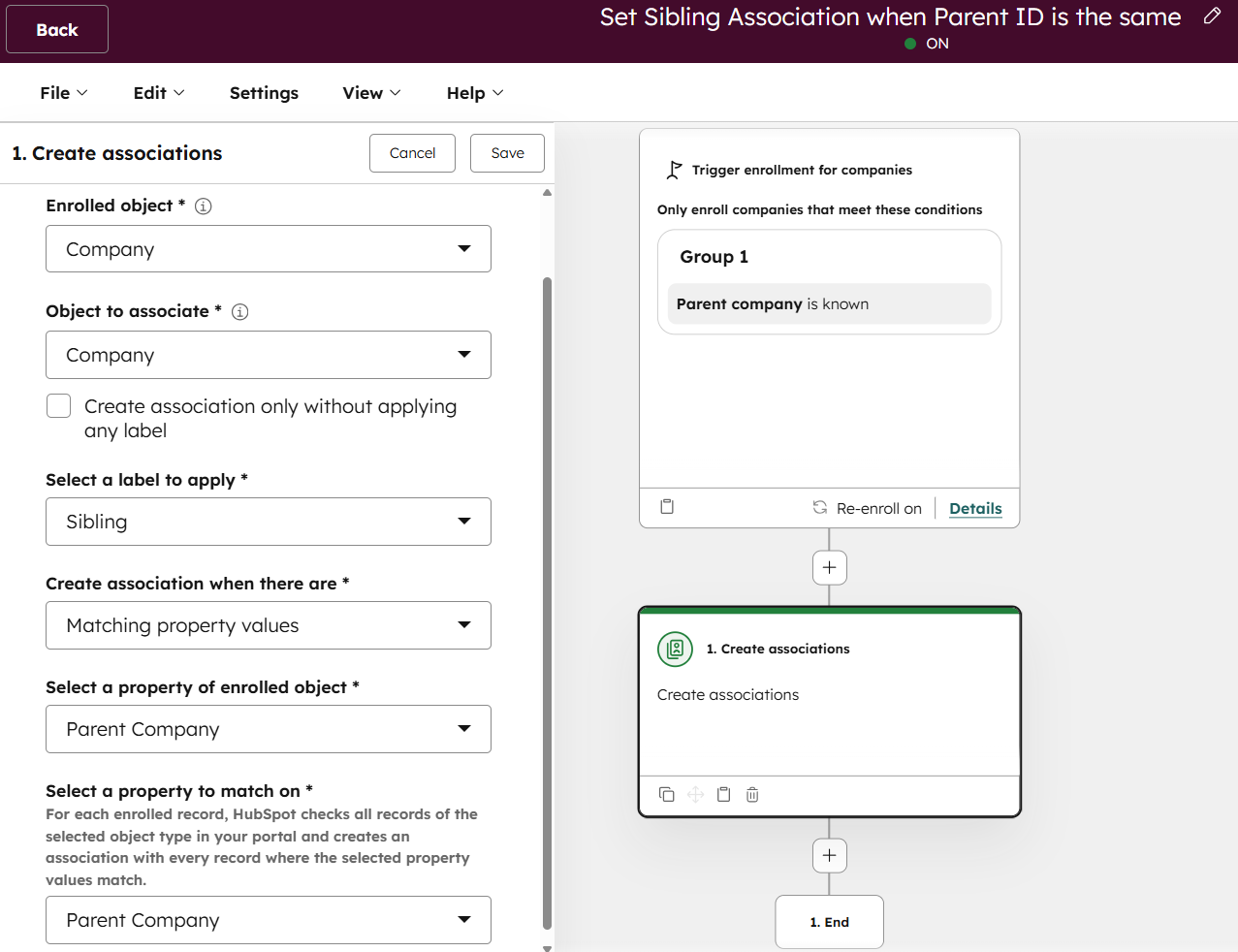
Next, create a company-based workflow to automatically associate companies that share the same parent company.
The logic is straightforward:
- enroll child companies that have a parent company set
- find other companies with that same parent company
- create a company-to-company association using your sibling label
Enrollment criteria
Your enrollment rule should be:
- Parent Company is known
This ensures only child companies with a mapped parent are included.
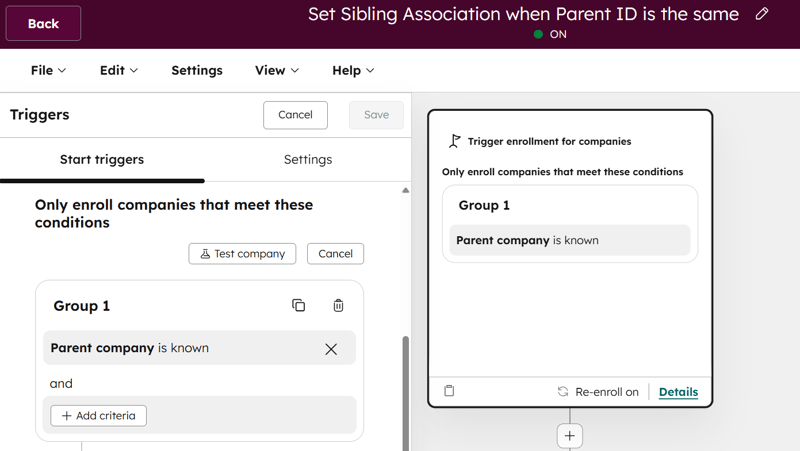
Depending on your setup, you may also want to add:
- the company is active
- the company is not already associated with the sibling label
- re-enrolment is enabled when the parent company value changes
That last point matters for portals where account ownership changes over time. If a company moves under a different parent, re-enrolment lets the workflow catch that and update accordingly.
Workflow action setup
Configure the workflow so the action effectively says:
- Action: Create association
- Enrolled Object: company
- Object to associate: company
- Apply association label: Sibling
- Create association when there are: matching property values
- Select property of the enrolled object: Parent Company
- Select property to match on: Parent Company
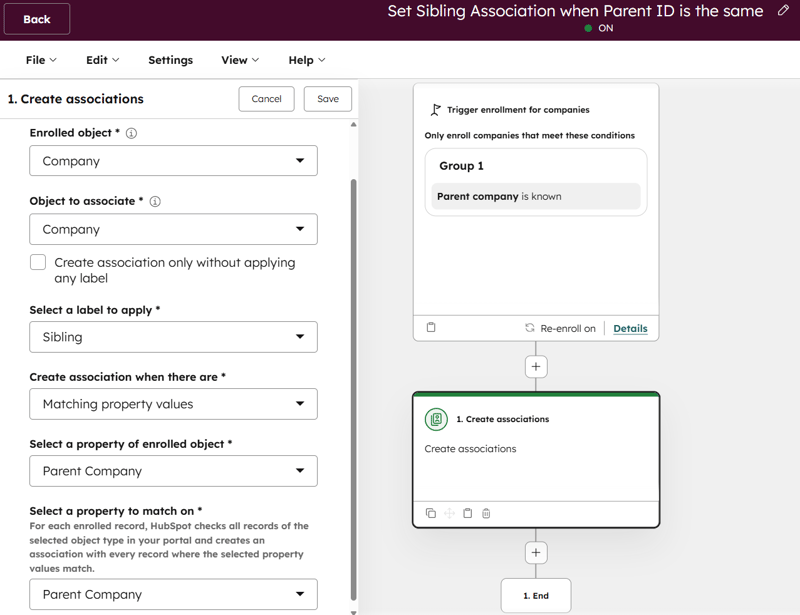
Important guardrail: exclude self-association
You do not want a company associated to itself as its own sibling.
So your workflow should exclude the currently enrolled company from the matching set. In practice, that means adding logic so the target company’s Record ID does not equal the enrolled company’s Record ID.
Example
Let’s say your company records look like this:
- Acme Group → parent company
- Acme US → Parent Company = Acme Group
- Acme UK → Parent Company = Acme Group
- Acme Germany → Parent Company = Acme Group
Once the workflow runs:
- Acme US is associated to Acme UK as Sibling company
- Acme US is associated to Acme Germany as Sibling company
- Acme UK is associated to Acme Germany as Sibling company
The parent-child relationships remain intact, but now the child companies are also connected laterally.
Best practices
Keep parent-child and sibling relationships separate
Do not try to replace the native parent-child model. Use:
- Parent company / Child company for hierarchy
- Sibling company for peer relationships under the same parent
Test with a small segment first
Before enrolling all existing companies:
- manually test a few records
- validate that sibling associations are being created correctly
- check whether any existing records create noise or duplicate associations
This is especially important in portals where parent company data has been maintained manually.
Think through parent changes
If a company moves under a different parent, old sibling associations may no longer be valid.
That means your workflow strategy should account for:
- re-enrollment when the parent changes
- cleanup logic if you want to remove outdated sibling associations
- testing for edge cases in complex account structures
Use the label in downstream processes
Once created, association labels can be used in workflows and reporting. That means you can later build lists, automations, and reports based on sibling relationships as well.
Final thought
HubSpot’s parent-child associations are a strong starting point for modeling account hierarchy.
But for many RevOps teams, the next step is making those related child entities easier to see and use across the CRM.
By combining:
- one custom company-to-company association label
- and one company-based workflow
you can turn a basic parent-child setup into a much more usable account map inside HubSpot.
And if you still need to build the parent-child foundation first, start with the broader guide on automatic parent-child company associations.
Frequently Asked Questions about Sibling Company Associations in HubSpot
Does HubSpot support sibling company associations natively?
HubSpot does not have a built-in sibling label, but it does support custom company-to-company association labels. You create the label yourself in association settings and use it in workflows. Once set up, it behaves like any other association label: visible on records, usable in workflows, and available for reporting.
Do I need parent-child associations set up first?
Yes. The workflow works by finding companies that share the same parent company value and linking them to each other. If parent-child associations are not in place, there is no shared parent value to match on.
What happens if a company changes parent?
The sibling associations it accumulated under the old parent will not update automatically unless re-enrolment is enabled. Enable re-enrolment when the Parent Company value changes and consider adding cleanup logic for associations that are no longer valid.
Will the workflow associate a company to itself?
It will unless you add an exclusion. Add a condition that the target company's Record ID does not equal the enrolled company's Record ID to prevent this.