

Your SDR opens the prospecting workspace and sees the same person twice. One lead was created when they downloaded an ebook, the other when they booked a demo. The rep qualified the newer lead, but every call and email sits on the older one. And your lead-to-deal report now counts one buyer as two.
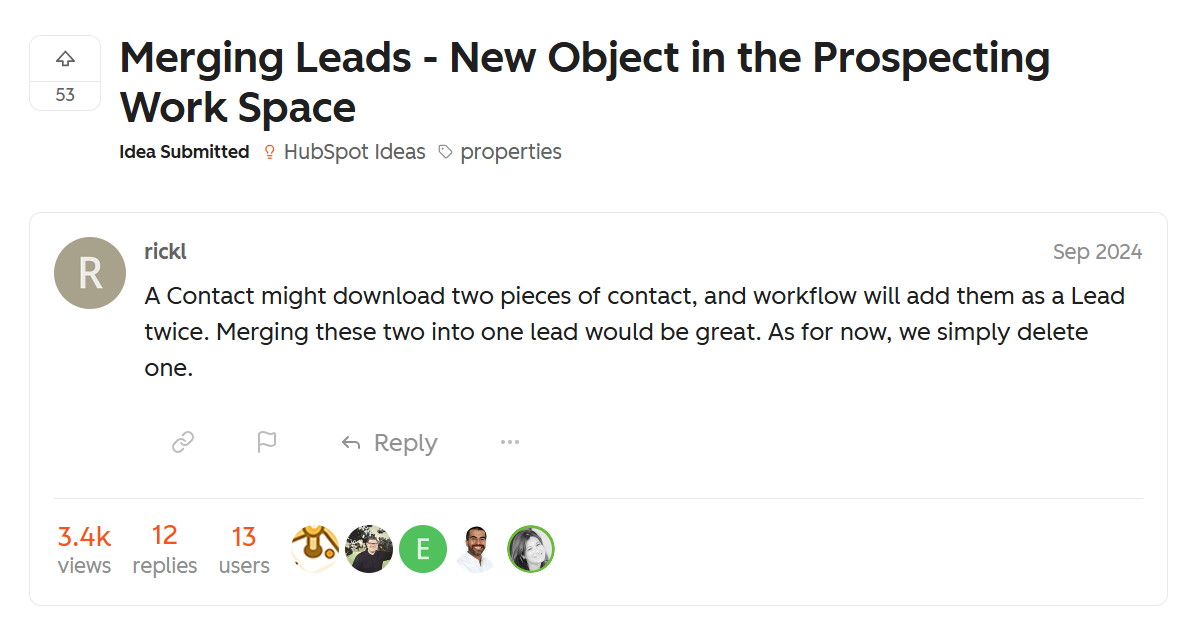
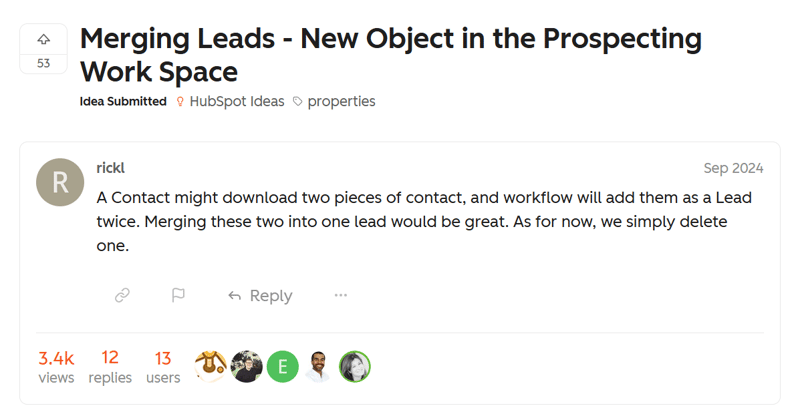
With contacts, companies, deals, and tickets, you'd click Actions → Merge and move on. With leads (the object your reps work from in HubSpot's prospecting workspace, not contacts with the lifecycle stage "Lead"), that option doesn't exist. HubSpot has no native way to merge leads, and the request has been sitting in the HubSpot Ideas forum since September 2024, with admins still adding their votes in 2026.
In this guide, you'll learn what your options actually are, and when each one makes sense:
- Can you merge leads in HubSpot?
- Why HubSpot creates duplicate leads
- How to handle duplicate leads manually in HubSpot
- How to prevent duplicate leads with workflow branching
- How to bulk merge HubSpot leads with the Koalify workflow action
- Before you bulk merge your leads
If you're cleaning up the contacts and companies behind those leads too, see our guides on how to merge contacts in HubSpot and how to merge companies in HubSpot.
Can You Merge Leads in HubSpot? 🤔
No. HubSpot has no native merge option for leads: the Actions menu on a lead record has no Merge button, and the Duplicate Management tool only covers contacts and companies. To merge duplicate leads, you either delete one manually or use a workflow action from an app like Koalify.
Here's where the gap shows up:
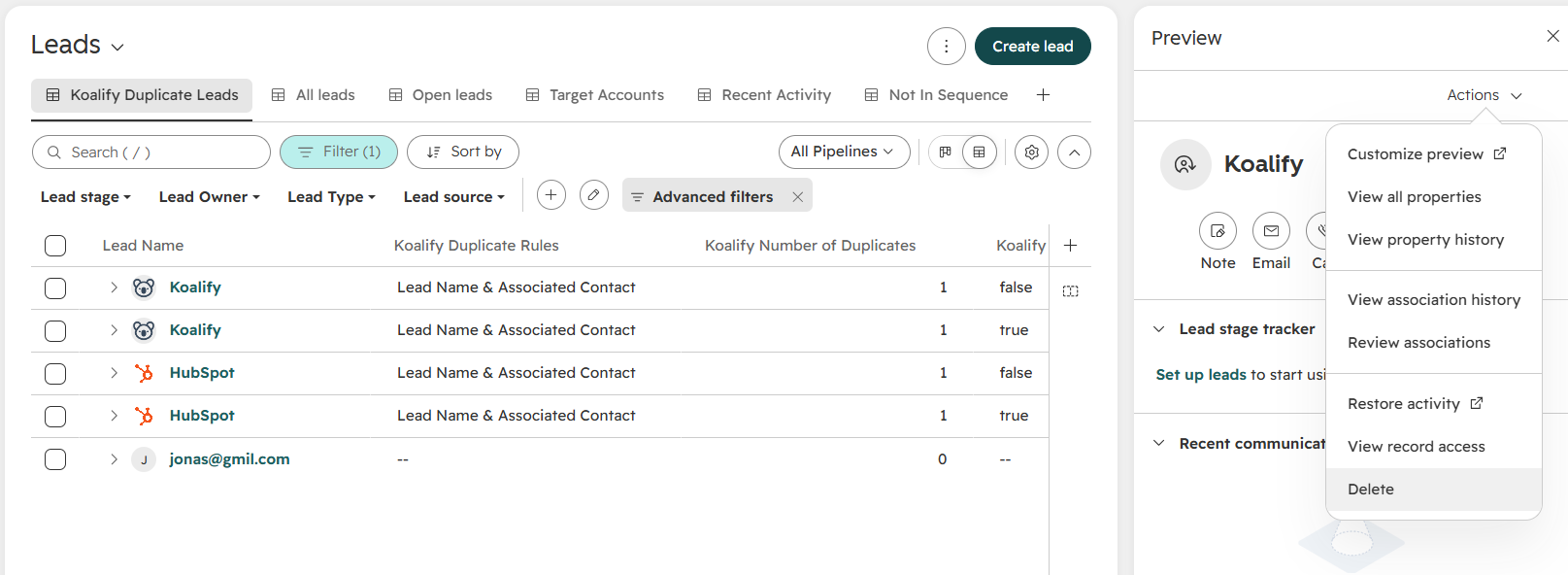
- There's no Merge option in the Actions menu on a lead record.
- Leads aren't covered by HubSpot's Duplicate Management tool, which only flags contacts and companies.
Until HubSpot ships a native option, most teams do what one admin described in the community thread: they pick one lead and delete the other.
Why HubSpot Creates Duplicate Leads
Duplicate leads rarely come from one bad import. They come from the way leads are created, usually several times over and from several directions:
- Multiple lead-creation workflows. One workflow creates a lead on a form submission, another on a website visit, another when a meeting is booked. The same contact hits two triggers and gets two leads.
- Re-conversions. A contact downloads two pieces of content a week apart, and the same workflow creates a lead each time.
- Reps creating leads manually. When several reps work the same market, someone adds a lead without checking whether one already exists.
- Integrations and enrichment tools. When Apollo, Clay, or a calling tool pushes new or updated contacts into HubSpot, they can trip your lead-creation workflows again.
The cost isn't just clutter. Lead counts get inflated, so conversion rates look worse than they are. Two SDRs can end up working the same person. Activity history splits across records, so the rep who qualifies the lead can't see the outreach that came before. And if you're aiming for one lead per deal, every duplicate breaks that ratio.

How to Handle Duplicate Leads Manually in HubSpot ✋
If you only have a handful of duplicates, you can resolve them by hand. Because there's no merge button, "manual" here means consolidating what you need onto one lead and deleting the other.
Steps to manually resolve a duplicate lead:
- Open both leads and decide which one to keep. Usually that's the lead furthest along in your lead pipeline, or the one with the most activity.
- Copy any property values you want to retain from the duplicate onto the lead you're keeping.
- Check associations on the duplicate (contact, company, and any related deals) and make sure the lead you're keeping has the ones it needs.
- On the duplicate lead, click Actions → Delete.
✅ Pros:
- No extra tools needed
- You decide exactly what to keep
❌ Cons:
- Hard to detect duplicate leads in the first place (see how to find duplicates in HubSpot)
- Property values have to be copied over one by one
- Activity logged on the deleted lead doesn't move to the one you keep
- Not an option if your internal policy doesn't allow deleting CRM records for traceability reasons
- Doesn't scale beyond a few duplicates a week
How to Prevent Duplicate Leads with Workflow Branching 🔧
The cheapest duplicate is the one that never gets created. If your leads come from workflows, you can add a check before the Create record action.
Steps:
- Open each workflow that creates leads.
- Before the action that creates the lead, add an If/then branch.
- Branch on whether the enrolled contact already has an associated lead that's still open (not disqualified or converted).
- Only create a new lead on the branch where no open lead exists.
✅ Pros:
- Stops many duplicates at the source
- Uses native HubSpot workflows
❌ Cons:
- Has to be added and maintained in every lead-creation workflow
- Doesn't catch leads created manually by reps or by integrations
- Does nothing for the duplicates you already have
Branching is worth doing regardless. Just don't expect it to fully solve the problem. As one admin put it in the community thread, it reduces duplicate leads but doesn't eliminate them.
How to Bulk Merge HubSpot Leads with the Koalify Workflow Action 🤖
When you have a backlog of duplicate leads, or new ones arriving every week from forms, reps, and integrations, you need merging that runs without anyone deleting records by hand. Koalify's lead merge runs through HubSpot workflows, so you can clear the backlog once and then leave it running in the background.
Unlike contacts and companies, there's no Koalify CRM card for leads. Lead merges happen through workflows only.
Steps:
- Set your duplicate rules for leads
- In the Koalify app settings, define what makes two leads duplicates, for example the same associated contact and the same lead type.
- Set your primary record rules so the right lead survives, such as the lead in the most advanced pipeline stage or the one created first.
- Exclude anything that shouldn't merge, such as legacy or event-specific leads.
- Create a new lead workflow
- Navigate to Automations → Workflows
- Click Create workflow and select From scratch
- Choose Lead-based, start with a blank workflow, and click Next
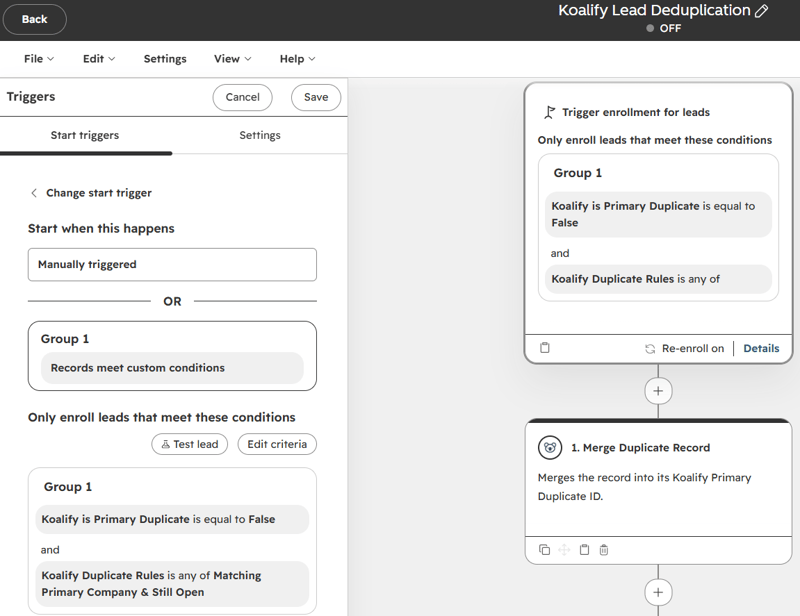
- Add the "Merge Duplicate Record" action
- Click the ➕ plus icon to add a workflow action
- Search for "Koalify" to find the action
- Select Merge Duplicate Record and click Save
- Enroll leads in the workflow
- Use manual enrollment for your first cleanup, so you control exactly which leads are merged
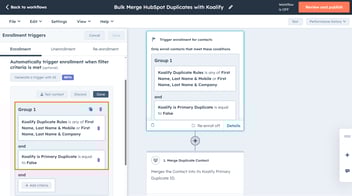
- Then switch to automatic triggers (for example, Koalify Number of Duplicates is greater than 0 and Koalify Primary Duplicate is false) to merge new duplicates as they appear
✅ Pros:
- Unlimited bulk merges
- Rules you control decide which leads are duplicates and which one becomes the primary
- Works for a one-time cleanup and for ongoing prevention
- No more deleting leads by hand
❌ Cons:
- Requires at least one Professional-tier Hub to use workflows
- No CRM card for leads, so merging one-off pairs from the record isn't possible
Before You Bulk Merge Your Leads ⚠️
Merges are permanent, so treat your first lead merge run the way you'd treat any bulk change to your CRM:
- Test in a sandbox first. Run your rules against a HubSpot sandbox before production.
- Start strict. Begin with tight duplicate rules and loosen them once you trust the results.
- Merge clean pairs first. Add a filter such as Koalify Number of Duplicates is equal to 1 so only one-to-one duplicates merge automatically. Larger clusters, say a contact with five leads from the same event, can go to manual review.
- Back up before your first bulk run. See our guide on backing up HubSpot before bulk merges.
Choose the Right Approach for Your Duplicate Leads
HubSpot doesn't give you a way to merge leads, so the right approach depends on how many duplicates you have and where they come from:
- For a few duplicates, consolidating and deleting by hand works.
- For leads created by your own workflows, branching logic stops a lot of them at the source.
- For a real backlog, or duplicates arriving every week from forms, reps, and integrations, a merge workflow with rules you control clears them in the background.
The table below compares the ways to deal with duplicate leads in HubSpot based on control, risk, and scalability.
| Method | Best for | Level of control | Risk at scale |
|---|---|---|---|
| Manual consolidate and delete | A handful of duplicate leads | Full, but every value copied by hand | High |
| Workflow branching | Stopping duplicates from your own lead workflows | Prevention only, no cleanup | Medium |
| Koalify workflow action | Backlogs and ongoing lead deduplication | Full control (rule-based) | Low |
Tired of deleting duplicate leads by hand? Install Koalify free and run your first lead merge workflow in a sandbox, then let it handle new duplicates as they arrive.
Frequently Asked Questions about Merging HubSpot Leads
Can you merge leads in HubSpot?
Not natively. HubSpot has no merge option on lead records, and leads aren't included in the Duplicate Management tool. To merge duplicate leads, you either consolidate and delete them manually or use a third-party workflow action such as Koalify's.
How do I find duplicate leads in HubSpot?
HubSpot's Duplicate Management tool doesn't scan leads, so you have two options. Natively, build a custom report that counts leads per associated contact and filter for contacts with more than one open lead. With Koalify, you set duplicate rules for leads (for example, same associated contact and lead type), and every duplicate is flagged with Koalify properties you can filter views, lists, and workflows on.
Why does HubSpot create duplicate leads?
Most duplicate leads come from several workflows creating leads for the same contact (a form fill and a booked meeting, for example), contacts re-converting, reps adding leads manually without checking, and integrations or enrichment tools triggering lead-creation workflows again.
Does HubSpot's duplicate management tool find duplicate leads?
No. HubSpot's Duplicate Management tool only flags duplicate contacts and companies. To detect duplicate leads, you need custom rules, for example leads sharing the same associated contact.
Which lead is kept when Koalify merges duplicate leads?
The lead that matches your primary record rules, such as the one furthest along in your lead pipeline or the one created first. The duplicate is merged into it, so you end up with one lead instead of two.
Can you undo a lead merge in HubSpot?
No. Merges in HubSpot are permanent, so test your rules in a sandbox and back up your data before your first bulk run.
Can you merge HubSpot leads automatically?
Yes, with a workflow. Add Koalify's merge action to a lead-based workflow and use Koalify's duplicate properties as the enrollment trigger, so new duplicate leads are merged as soon as they're detected.