


A customer checks out with their Gmail address in March. In June they order again from the office, using their work email. Shopify sees two customers. HubSpot sees two contacts. Now their order history is split across two records, your segments count them twice, and your post-purchase workflow sends the "welcome, first-time buyer" email to someone on their fourth order.
Multiply that by every repeat buyer who has ever used a second inbox, and you have the duplicate problem most Shopify-connected HubSpot portals live with. It doesn't stop after one cleanup. Every new order, cart and account is a fresh chance for the sync to create another record.
This guide covers why the HubSpot Shopify integration creates duplicates, how to set up the sync so you can tell records apart, and how to merge duplicates with Koalify without breaking the link between the two systems.
Why the Shopify integration creates duplicates
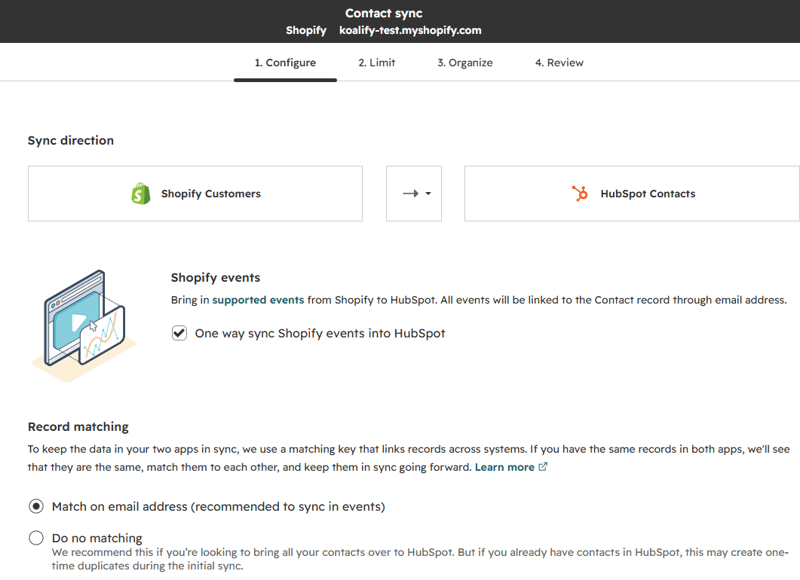
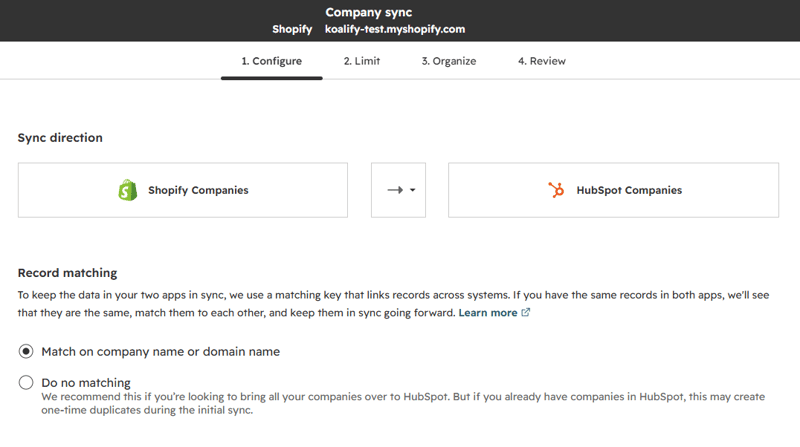
The integration is only as good as the field it matches on. For contacts that field is the email address. For companies it's the company name or domain. When those values differ, the sync has no way of knowing two records belong together.
Duplicate contacts: one person, several email addresses
HubSpot's data sync matches Shopify customers to contacts by comparing email addresses. So the most common duplicates look like this:
- Personal vs work email. The same buyer orders with jane@gmail.com and jane@acme.com. Two customers in Shopify, two contacts in HubSpot.
- Guest checkout vs account. A customer has a Shopify account under one address, then checks out as a guest with another. Shopify creates a second customer profile, and the sync faithfully copies it across.
- Contacts that already existed in HubSpot. A lead filled in a form with their work email months before buying with a personal one. The sync can't connect the purchase to the lead, so you get a new "customer" contact and an orphaned "lead".
- Re-imports. HubSpot warns that if you've already imported records into either app, they may sync again and create a new, duplicate record.
Orders and carts make it worse, not better. Neither order sync nor cart sync identifies or merges duplicate records. Each order is associated with whichever contact the sync picked, so revenue, average order value and lifecycle stage end up spread across records.
Duplicate companies: different names, different domains
If you sell B2B or wholesale through Shopify Plus, companies sync too, and they match on company name or domain name. Normalisation strips capitalisation and punctuation, so "ACME Ltd." and "acme ltd" will match. But plenty still won't:
- "Acme" in Shopify and "Acme Holdings Ltd" in HubSpot
- acme.com in one system and acme.co.uk in the other
- A Shopify company with no domain at all, created by a buyer who only filled in a name
Each mismatch is a new company record in HubSpot, with its own contacts, orders and owner. Your sales team now has to guess which Acme is the real one.
How the HubSpot Shopify integration maps your records
Before you merge anything, you need to know which HubSpot records are linked to which Shopify records. That's the difference between a safe merge and one that quietly breaks the sync.
What syncs and how it matches
| HubSpot | Shopify | Direction | Matched on |
|---|---|---|---|
| Contacts | Customers | Two-way | Email address |
| Companies | Companies (Shopify Plus only) | Two-way | Company name or domain |
| Orders | Orders | Shopify to HubSpot | Shopify order ID |
| Carts | Abandoned checkouts | Shopify to HubSpot | No duplicate matching |
Once two records are paired, data sync relies on record IDs to keep them in sync, not on email or name. That matters later: when you merge, you're deciding which pairing survives.
Two settings help at the source:
- Only sync contacts with an email address. HubSpot recommends ticking this on the Limit screen to reduce duplicate records being created in either app.
- Only sync companies with a name or domain. This stops blank company records from appearing in HubSpot.
Neither setting fixes the "one person, two emails" problem. They just stop the most obvious junk getting in.
Create a Shopify Record ID property for contacts and companies
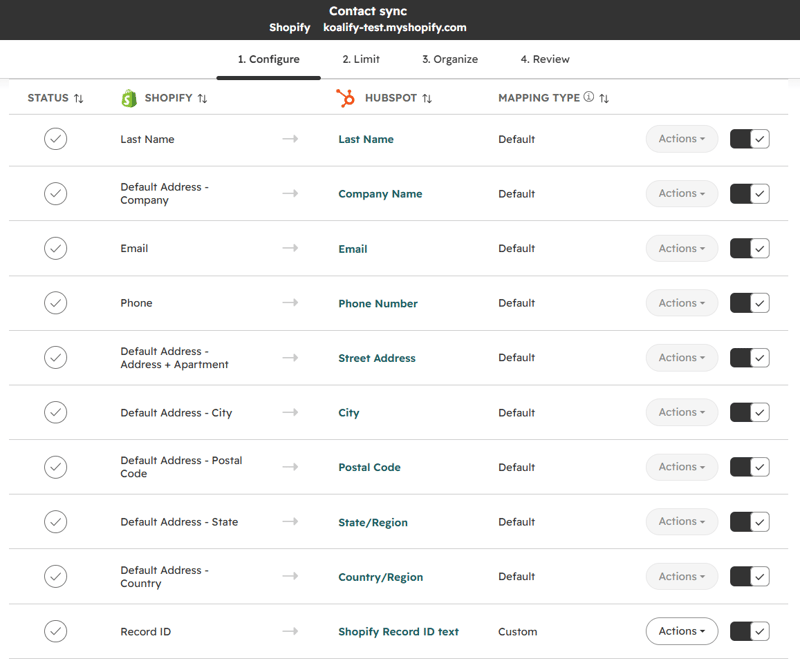
Here's the step most setups skip. Out of the box, it's hard to see in HubSpot which contact is the one Shopify is actually syncing with. Fix that by storing the Shopify ID on the record itself:
- In HubSpot, go to Settings > Properties and create a single-line text property called Shopify Record ID on the Contact object.
- Create the same property on the Company object.
- Go to Settings > Integrations > Connected Apps > Shopify and open the contact sync's field mappings.
- Map the Shopify customer ID field to your new Shopify Record ID contact property, set to sync from Shopify to HubSpot.
- Repeat for the company sync, mapping the Shopify company ID to the company property.
Custom field mappings need at least a Data Hub Starter subscription. If you're on the free tier, this is the one upgrade that pays for itself in fewer broken merges.
Once the sync backfills, every Shopify-linked record carries its ID, and every HubSpot-only record (form fills, imports, sales-created contacts) has the property empty. Koalify uses exactly that difference to decide what's safe to merge and which record should survive.
Set up Shopify-safe duplicate rules in Koalify
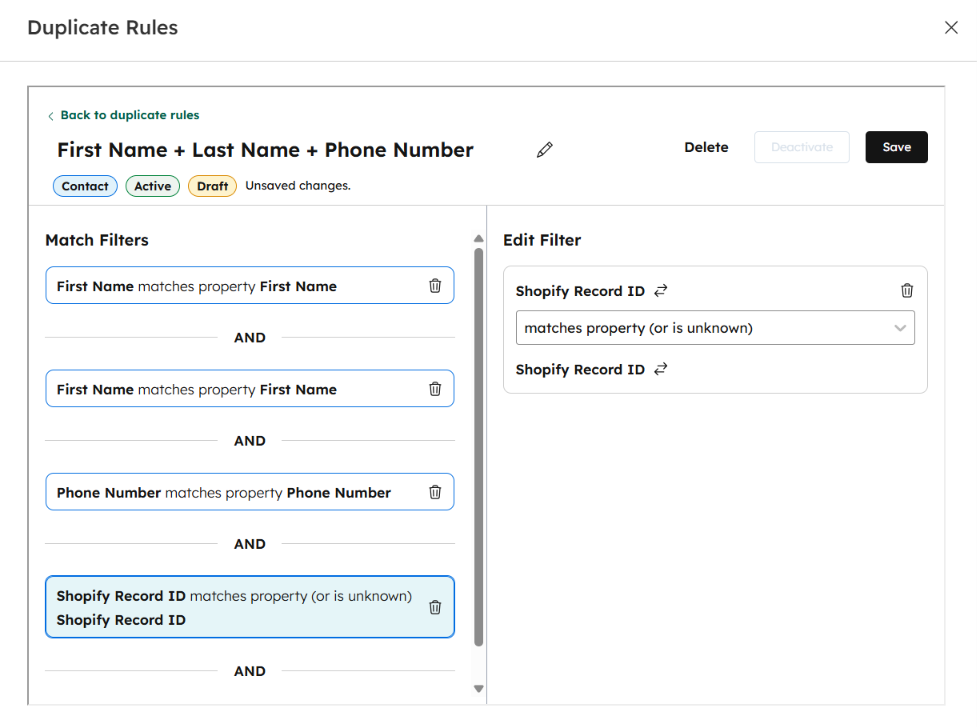
The integration can't catch jane@gmail.com and jane@acme.com because it only looks at email. Koalify custom duplicate rules can, because you decide which properties have to match. The trick is to add one guardrail to every rule: the Shopify Record ID.
The guardrail: "Shopify Record ID matches (or is unknown)"
Add this condition to each rule you build:
- Same Shopify Record ID, or empty on one or both records: Koalify flags the pair. At most one of them is linked to Shopify, so merging won't orphan a Shopify customer.
- Both filled and different: Koalify doesn't flag the pair. These are two separate Shopify customers. Merge them in Shopify first (more on that below).
Duplicate rules for contacts
Pick rules that use fields a repeat buyer keeps the same, even when the email changes:
- First Name + Last Name + Phone Number + Shopify Record ID matches (or is unknown)
- First Name + Last Name + Street Address + Shopify Record ID matches (or is unknown). Shipping address is often the most reliable match for ecommerce buyers, and the one that catches guest checkouts with a throwaway email.
- First Name + Last Name + Company Name + Shopify Record ID matches (or is unknown). Useful for B2B buyers who order from work and personal addresses.
An email domain rule (First Name + Last Name + Email Domain) is safe to automate for B2B buyers once you exclude free domains like gmail.com and outlook.com. For a mostly DTC store it won't catch much, because most of your customers use free email.
Duplicate rules for companies
- Company Name + Shopify Record ID matches (or is unknown)
- Company Domain Name + Shopify Record ID matches (or is unknown)
- Company Name + Phone Number + Shopify Record ID matches (or is unknown), for wholesale accounts that registered without a domain
Be careful with franchise and multi-location buyers. Ten shops on one domain can be ten genuinely separate Shopify companies. The Shopify Record ID guardrail protects you when each location has its own Shopify company; if they don't, review those clusters manually.
Tip: activate new rules so they only flag duplicates first. Look through the matches in a HubSpot view, then add the rule to your merge workflow once you trust it.
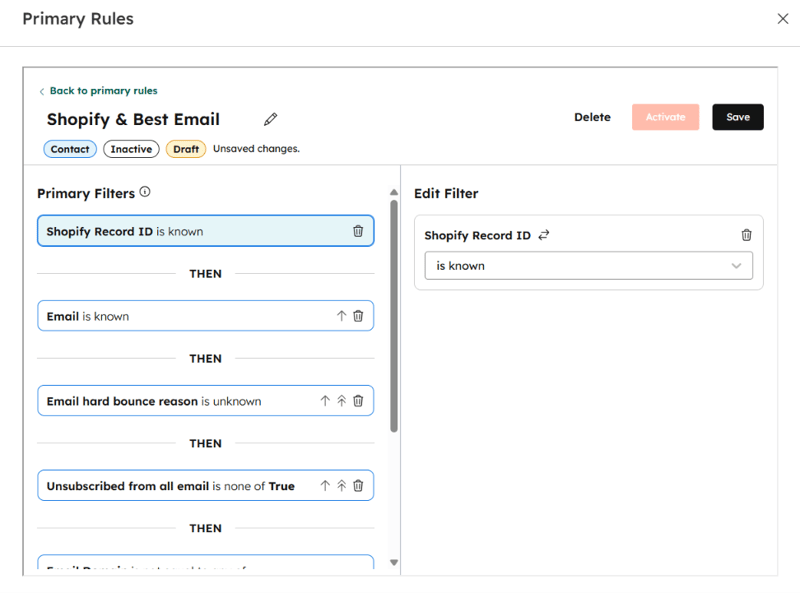
Primary rules: keep the Shopify-synced record
When only one record in a pair has a Shopify Record ID, that record must stay primary. It holds the live pairing with Shopify, so it's the one new orders will keep landing on. Koalify's primary rules decide which record survives a merge.
For contacts:
- Shopify Record ID is known
- Unsubscribed from all email is not true, so you never revive an unsubscribed contact as the primary
- Then most recent Last Activity Date as the tiebreaker
For companies:
- Shopify Record ID is known
- Then most recent Last Activity Date (or the record with the most associated contacts)
The secondary record's form submissions, email engagement, page views, notes and associated orders all move onto the Shopify-synced primary. Nothing HubSpot-only gets lost.
What happens when you merge or delete records
This is where most Shopify cleanups go wrong. The right move depends on how many of the duplicates are linked to Shopify.
| Situation | Where to resolve it | What happens |
|---|---|---|
| Neither record has a Shopify Record ID | HubSpot (Koalify) | Plain HubSpot merge. Nothing changes in Shopify. |
| One record has a Shopify Record ID | HubSpot (Koalify) | The synced record stays primary, keeps its pairing, and new orders keep landing on it. |
| Both have different Shopify Record IDs | Shopify first, then HubSpot | Merging in HubSpot first leaves one Shopify customer without a HubSpot partner. |
When only one record syncs with Shopify
This is the most common case: a HubSpot-only lead and a Shopify-created customer contact for the same person. Merge directly in HubSpot. With the primary rule above, Koalify keeps the Shopify-synced record as primary, so the pairing carries on and the old lead's history moves across.
When both records sync with Shopify
Two HubSpot contacts with two different Shopify Record IDs means two customer profiles in Shopify too. Fix it at the source:
- Merge the customers in Shopify. Shopify has supported merging customer profiles in the admin since October 2022. Keep the profile that's already syncing with the HubSpot record you want to keep. Like a HubSpot merge, it can't be undone.
- Clear the Shopify Record ID on the leftover HubSpot contact. Deleting or merging a customer in Shopify won't delete the matching contact in HubSpot, so the leftover stays behind with an ID that no longer points anywhere. Clear it with a bulk edit or a workflow.
- Let Koalify pick it up. With the ID now empty on one side, your "matches (or is unknown)" rules flag the pair and the merge workflow folds the leftover into the synced record.
Tip: build a contact view filtered on recent Shopify merges, with columns for Shopify Record ID and last modified date. You'll see at a glance which leftovers still carry a stale ID. Koalify holds those pairs back until the ID is cleared.
Why you should merge rather than delete
Deleting looks quicker, but you lose more than you think:
- HubSpot-only history goes with it. Email engagement, form submissions, page views, notes and any properties Shopify doesn't sync are tied to the HubSpot record, not the Shopify customer.
- Deletes don't cross over. Deleting a contact or company in HubSpot doesn't delete it in Shopify, and the reverse is also true. A deleted HubSpot contact whose Shopify customer still exists can come back the next time that customer updates or orders.
- Merges are final, so check first. HubSpot notes that once you've merged two records, you can't unmerge them. Take a backup before a bulk run.
Bulk merge Shopify duplicates on autopilot
Once your rules are strict enough to trust, let a workflow do the merging, both for the backlog and for every new duplicate the sync creates.
Enrolment criteria:
- Koalify is Primary Duplicate is false
- Koalify Duplicate Rules is any of your Shopify-safe rules (for example First Name, Last Name, Street Address + Shopify Record ID)
- Optional: Shopify Record ID is unknown, so only records with no live Shopify link get merged into their synced primary
Action: add the Koalify workflow action Merge Duplicate Contact (or Merge Duplicate Company for the company workflow).
From then on it runs in the background. A buyer who comes back with a new email is merged into their existing record shortly after the sync creates the duplicate, so their order history, lifecycle stage and segments stay in one place. One Shopify-connected portal we work with took its contact count from roughly 920,000 to 880,000 this way, which also lowers the HubSpot bill at renewal.
FAQ
Why does the HubSpot Shopify integration create duplicate contacts?
The sync matches Shopify customers to HubSpot contacts on email address only. When a buyer uses a second email, such as a work address, a guest-checkout address or a new inbox, the sync treats them as a new person and creates a new contact.
Should I merge duplicates in Shopify or HubSpot first?
If both records have different Shopify Record IDs, merge the customers in Shopify first, then clear the ID on the leftover HubSpot record and merge it in HubSpot. If only one or neither record is linked to Shopify, merge directly in HubSpot and keep the Shopify-synced record as primary.
What happens to Shopify when I delete a contact in HubSpot?
Nothing. Deleting a contact or company in HubSpot doesn't delete the matching customer in Shopify, and deleting in Shopify doesn't delete it in HubSpot. That's why merging is safer than deleting: you keep the HubSpot history and avoid the record coming back on the next sync.
Can Koalify merge duplicate companies created by Shopify?
Yes. Company sync is only available on Shopify Plus, and it matches on company name or domain, so "Acme" and "Acme Holdings Ltd" can end up as two records. Koalify flags them with name, domain or phone rules and keeps the Shopify-synced company as primary.
Do I need Data Hub Started to map the Shopify Record ID?
Yes. Custom field mappings for the Shopify integration need at least Data Hub Starter. Without the Shopify Record ID on each record, you can still deduplicate, but you lose the guardrail that stops two Shopify-linked records being merged in HubSpot.
Keep every buyer on one record
The Shopify sync will keep creating duplicates for as long as people have more than one email address. You can't change that, but you can make sure each one is merged into the right record shortly after it appears. Map the Shopify Record ID, add it to your rules, and let the workflow run in the background.
See your Shopify duplicates in minutes — install Koalify free from the HubSpot Marketplace