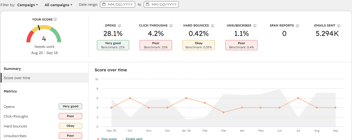


Your HubSpot email health score dropped from 8 to 6 last month. Is that a subject-line problem, a list problem, or the start of a deliverability problem? The score alone won't tell you, and most teams check it once, shrug, and move on.
This post explains how to read HubSpot's email health tool properly: where it is, what goes into the score, which numbers should worry you, and the gaps you need to cover somewhere else.
Where to find the email health tool
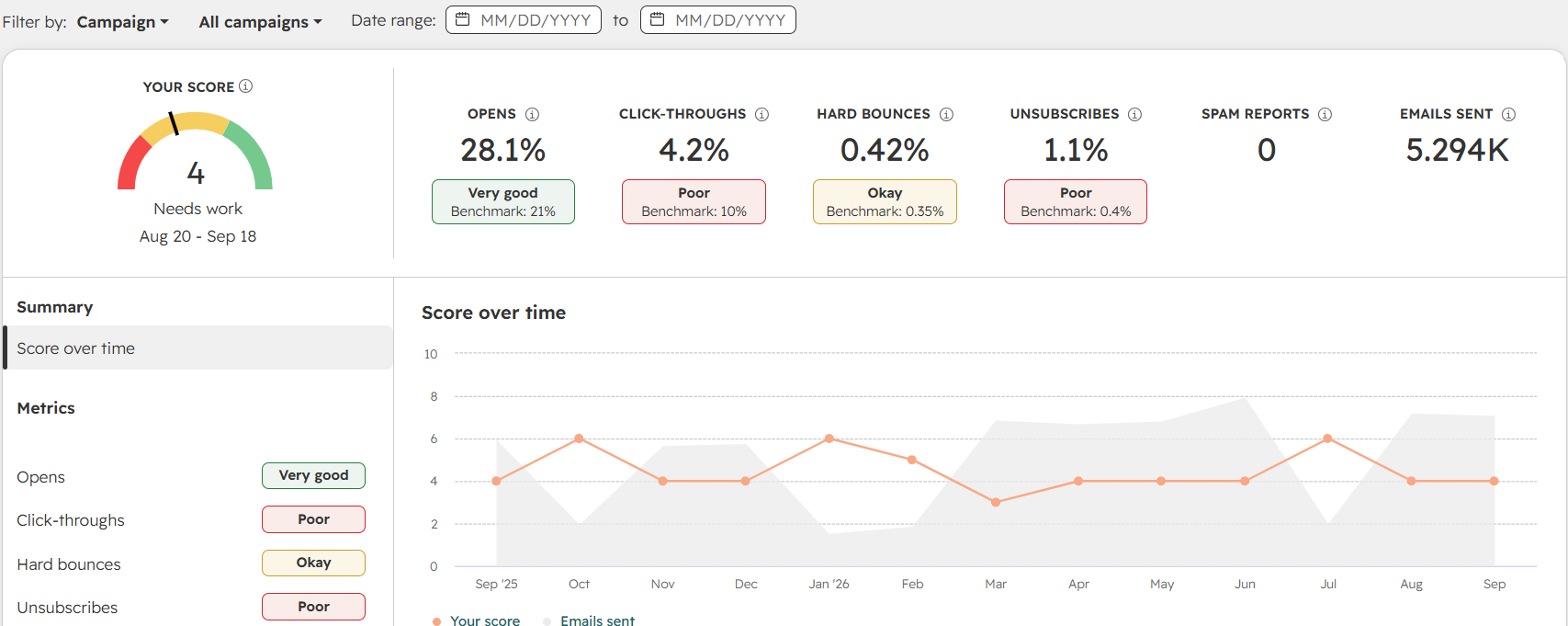
In HubSpot, go to Marketing > Email and click the Health tab. HubSpot describes it as a view of your current and past sending reputation: your open rate, click-through rate, unsubscribe rate, spam reports and hard bounce rate, along with recommendations for improving deliverability.
Before you rely on it, know the rules for when it shows data:
- You need volume. Data only appears once you've sent 400 emails in the last 30 days. The score-over-time chart only includes months where you sent more than 400.
- It lags by two days. The reports don't include the last 48 hours of sends.
- Transactional email is included if you have the Transactional Email Add-On, which can flatter your numbers.
Two settings are worth changing straight away. Set your industry so you're compared with an industry benchmark instead of the general one, though industry benchmarks are only available for some industries. And if you're on Marketing Hub Professional or Enterprise, filter by campaign or email type (automated, transactional and so on) rather than reading the account total.
What your email health score means
The headline score runs from one to ten, based on your engagement over the past 30 days. A HubSpot Customer Success Manager explains it as a grading scale: roughly 1–2 is poor, 3–4 needs work, 5–6 is okay, 7–8 is good and 9–10 is excellent.
Treat the trend as more important than the number. A steady 6 in a difficult industry is healthier than an 8 that has dropped two points in a quarter.
How to read each metric
Open rate. Useful for spotting trends, but unreliable as an absolute figure. Privacy features record opens nobody made, and image blocking hides real readers. If your open rate falls while clicks hold steady, that's usually a measurement quirk. If both fall, look at inbox placement.
Click-through rate. Your most dependable engagement signal, because HubSpot tracks clicks through its own links whatever email client someone uses. If clicks are falling on one subscription type or workflow, you're probably looking at graymail.
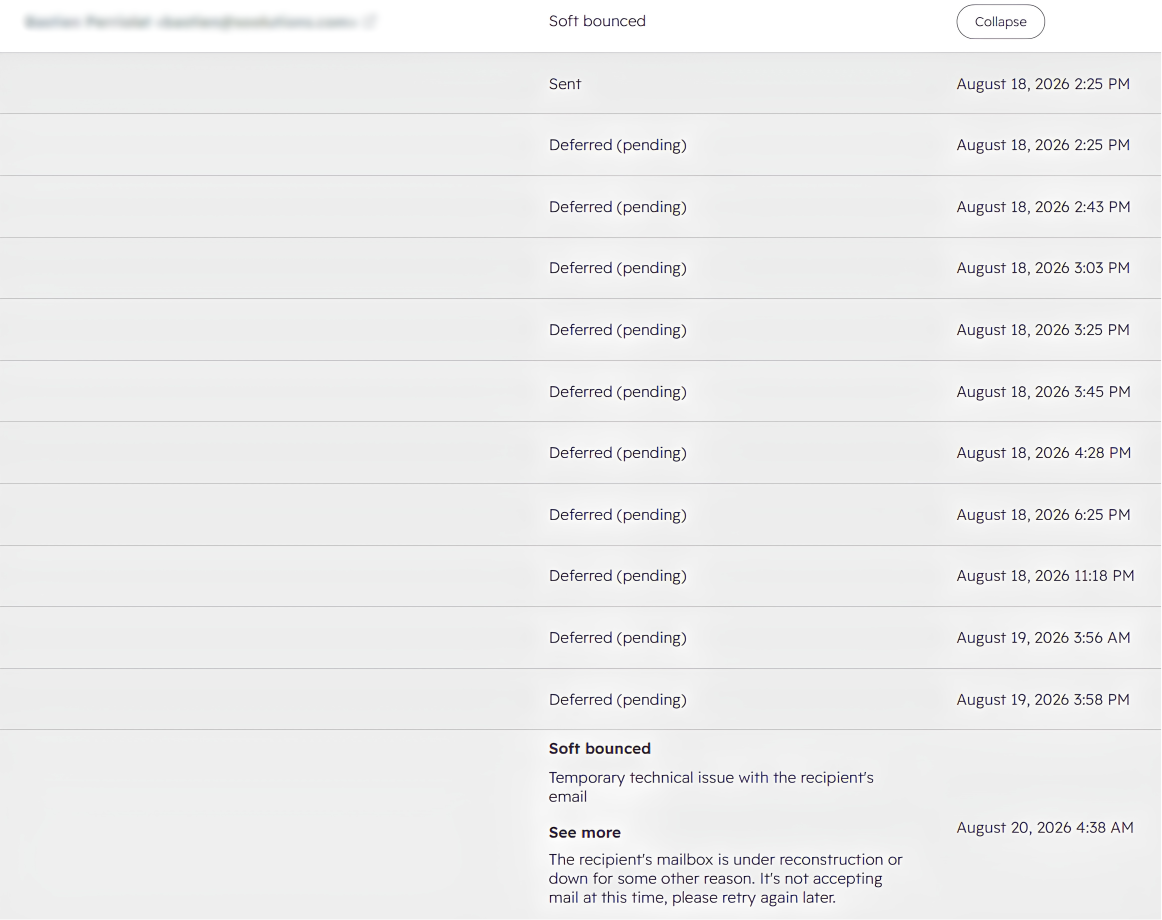
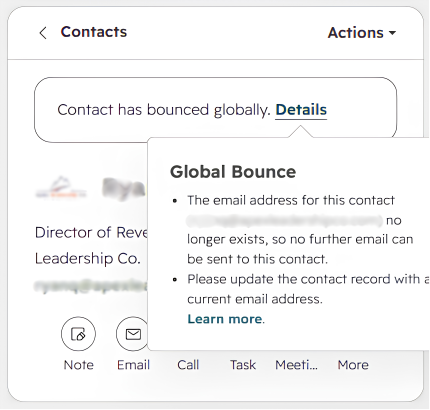
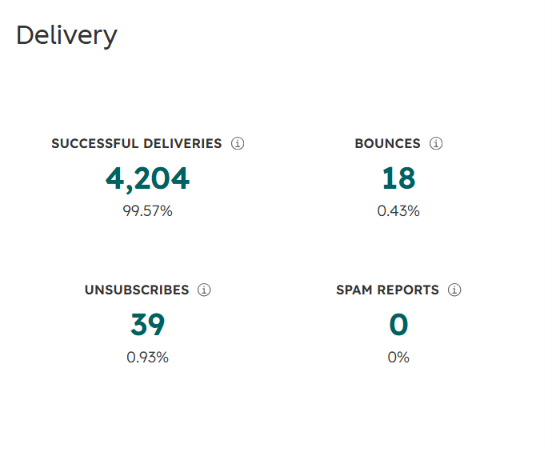
Hard bounce rate. HubSpot's CSM guidance treats anything above 2% as a sign you're sending to invalid or outdated addresses. HubSpot can suspend marketing email at 5%, and many mailbox providers prefer rates under 1%. A bounce problem is a list problem, and the fix is validating addresses before they're sent to.
Unsubscribe rate. HubSpot's CSM suggests revisiting content or frequency above 0.3%. The suspension limit is 3%. Unsubscribes aren't the enemy. They're a much cheaper signal than a spam report.
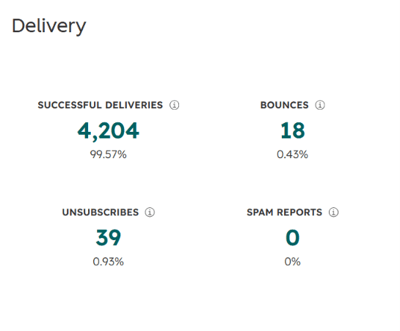
Spam reports. Anything above 0.1% is a cause for concern, and 0.1% (one in 1,000 emails) is also HubSpot's suspension limit. The dashboard shows spam reports as a count, not a rate, so divide by the emails you sent before comparing.
Use the four breakdowns, not just the score
Underneath the score, the tool lists your high and low performing emails, and your high and low performing contact segments. Low performing emails are those that did poorly on at least one deliverability metric.
The segment view is the most useful part of the tool, and the part most people skip. If one segment keeps showing up as low performing, you've found where the problem is: an old import, a list fed by an enrichment tool, or a batch of contacts from an event years ago. That's far more actionable than a single account-wide number.
What the email health tool can't see
The score is a good smoke alarm. It can't tell you everything, and it has four blind spots worth knowing:
- No Gmail spam reports. HubSpot doesn't get Gmail complaint data, so for a large B2C or mixed list, the spam count you see is only part of the picture. To track Gmail, set up Google Postmaster Tools.
- No authentication status. A missing DMARC record or a disconnected sending domain doesn't show up in the score until mail starts failing.
- No view of your data quality. Duplicates and invalid addresses only appear indirectly, through bounces and falling engagement, after they've already caused damage. One person on two records receives every email twice and ignores at least one copy, which quietly lowers your engagement rate on every send.
- Nothing below 400 sends. Smaller or seasonal senders may have no score for months at a time.
For a check that covers all of this, use the full checklist in our HubSpot email deliverability guide.
FAQ
How do I check my email health in HubSpot?
Go to Marketing > Email and click the Health tab. You'll need to have sent at least 400 emails in the last 30 days for data to appear.
What is a good HubSpot email health score?
On HubSpot's one-to-ten scale, 7–8 is good and 9–10 is excellent. More important than the number is the trend over several months and how the individual metrics compare with your industry benchmark.
Why is my HubSpot email health dashboard empty?
The tool needs at least 400 emails sent in the last 30 days, and it leaves out the most recent 48 hours. If you send less than that, it won't have enough data to show a score.
Does the HubSpot email health tool include Gmail spam reports?
No. Gmail spam report data isn't available in HubSpot. Use Google Postmaster Tools to monitor your Gmail complaint rate.