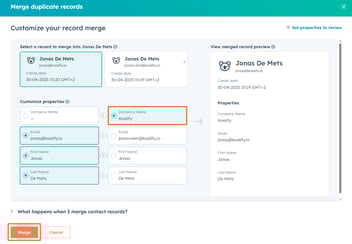


When you run HubSpot and Salesforce side by side, duplicates cause problems for marketing, sales and reporting. They're harder to clean up than in a HubSpot-only portal, because one wrong merge can break the link between the two systems. This guide shows you how to manage and reduce duplicates without breaking your Salesforce–HubSpot integration.
These are 4 key concepts that you need to know:
1. Salesforce as the Source of Truth
Treat Salesforce as the primary source of truth, especially for company and account records. HubSpot automatically deduplicates Salesforce accounts into HubSpot companies using the Salesforce Account ID property. To avoid duplication issues, consider disabling automatic company association or creation in HubSpot. This matters most when syncing Salesforce leads to HubSpot. Salesforce leads aren't associated with accounts, so they won't create a company in HubSpot during the initial sync. A duplicate company can still be created later, when a related contact or company is created in Salesforce.
➡️ Learn more about HubSpot deduplication
2. Merging Duplicate Contact in HubSpot
HubSpot allows you to merge duplicate contacts, even with the Salesforce integration enabled. Here's how:
-
- If the duplicate exists in both Salesforce and HubSpot: merge in Salesforce first, then let HubSpot follow.
- If the duplicate exists only in HubSpot: merge directly in HubSpot.
➡️ Learn more about how to merge HubSpot contacts
3. Merging Duplicate Companies in HubSpot with Koalify
HubSpot does not support merging companies while the Salesforce integration is active with the older version of the Salesforce integration. That’s where Koalify comes in. Koalify offers a merge-like behavior for company records, even when the Salesforce integration is enabled.
➡️ Learn more about how to merge HubSpot companies (when the Salesforce integration is disabled)
4. Avoid Disabling the Integration
HubSpot strongly advises against disabling the Salesforce integration to merge duplicates in HubSpot. Doing so can break the integration and disrupt the data sync. Instead, merge duplicates in Salesforce first, then merge the leftover records in HubSpot with Koalify rather than deleting them.
Salesforce Custom Properties in HubSpot
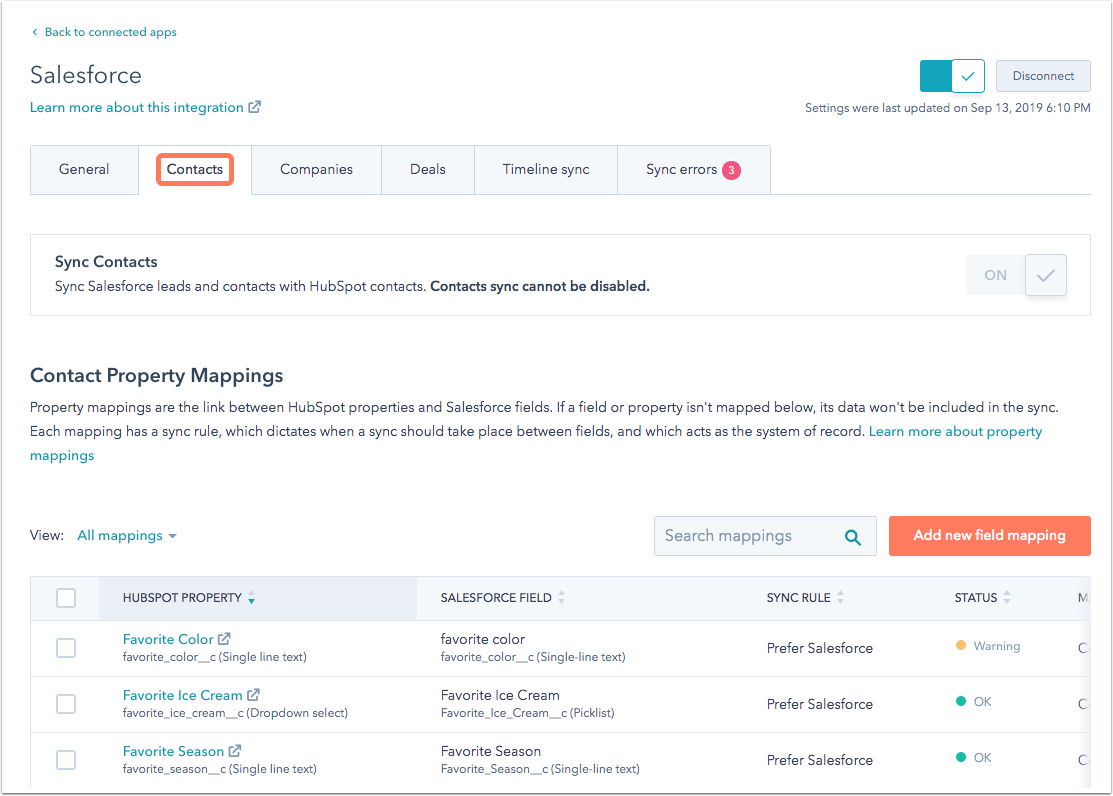
HubSpot Data Hub (formerly Operations Hub) syncs data in both directions between HubSpot and Salesforce.
- Data Hub Free: supports standard mappings (e.g. Contact ID, Lead ID, First Name, Last Name).
- Data Hub Starter: adds custom field mapping. You can sync unique Salesforce fields such as date of birth, mobile phone numbers, or any properties your business has created.
These synchronized properties can be leveraged with Koalify duplicate rules to identify duplicates and define the primary record during merging.
How to Merge Duplicate Companies in HubSpot with Salesforce Integration Active
HubSpot doesn't support native company merging with the Salesforce sync enabled with the old version of the integration, but Koalify provides a workaround.
A. When Both Duplicate Companies Sync with Salesforce
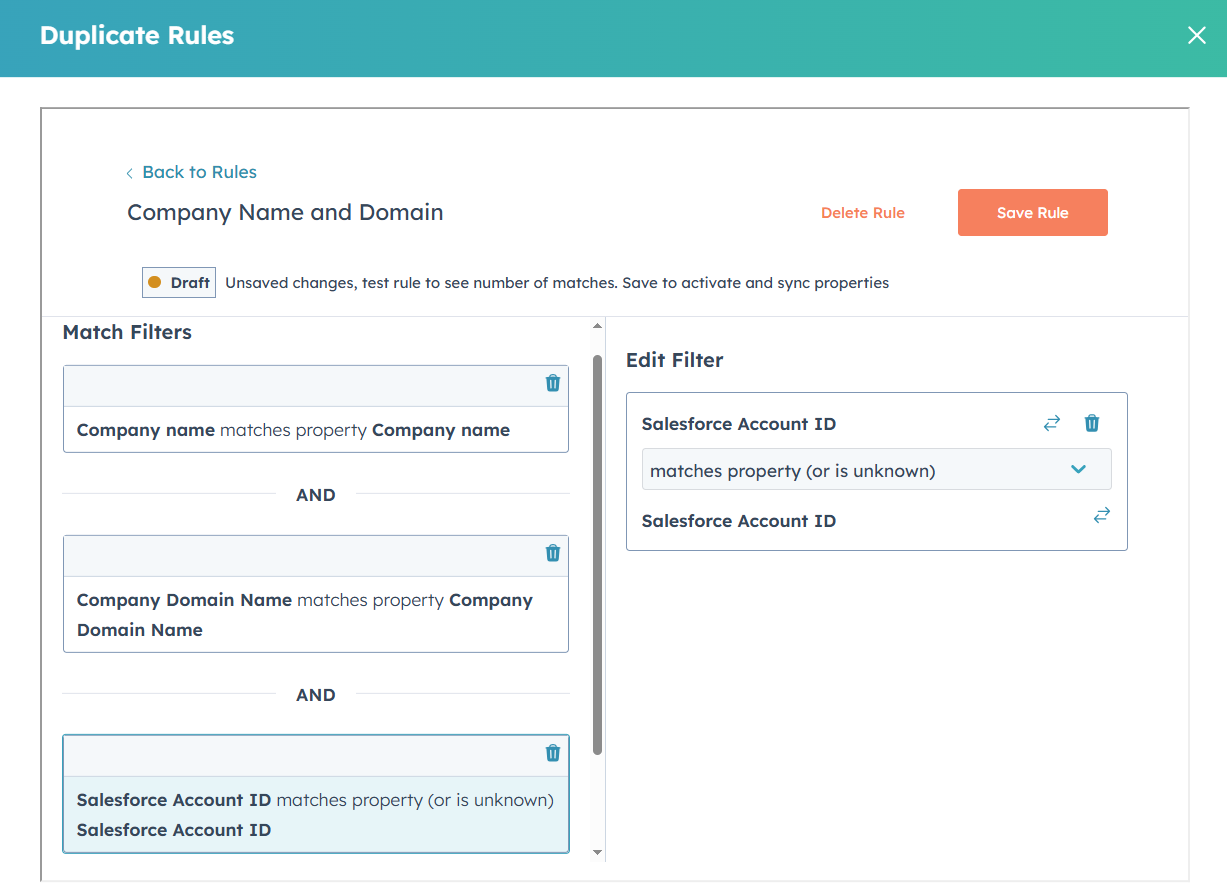
Don't merge companies that have different Salesforce Account IDs in HubSpot, because this can break the sync. Merge the accounts in Salesforce first. To stop Koalify suggesting these pairs, add a Salesforce Account ID filter to your duplicate rules:
-
Company Name (& Domain Name / Phone / Street Address) & Salesforce Account ID
- Company Name matches property Company Name
- Company Domain Name matches property Company Domain Name
- Salesforce Account ID matches property (or is unknown) Salesforce Account ID
B. When 1 Duplicate Companies sync with Salesforce
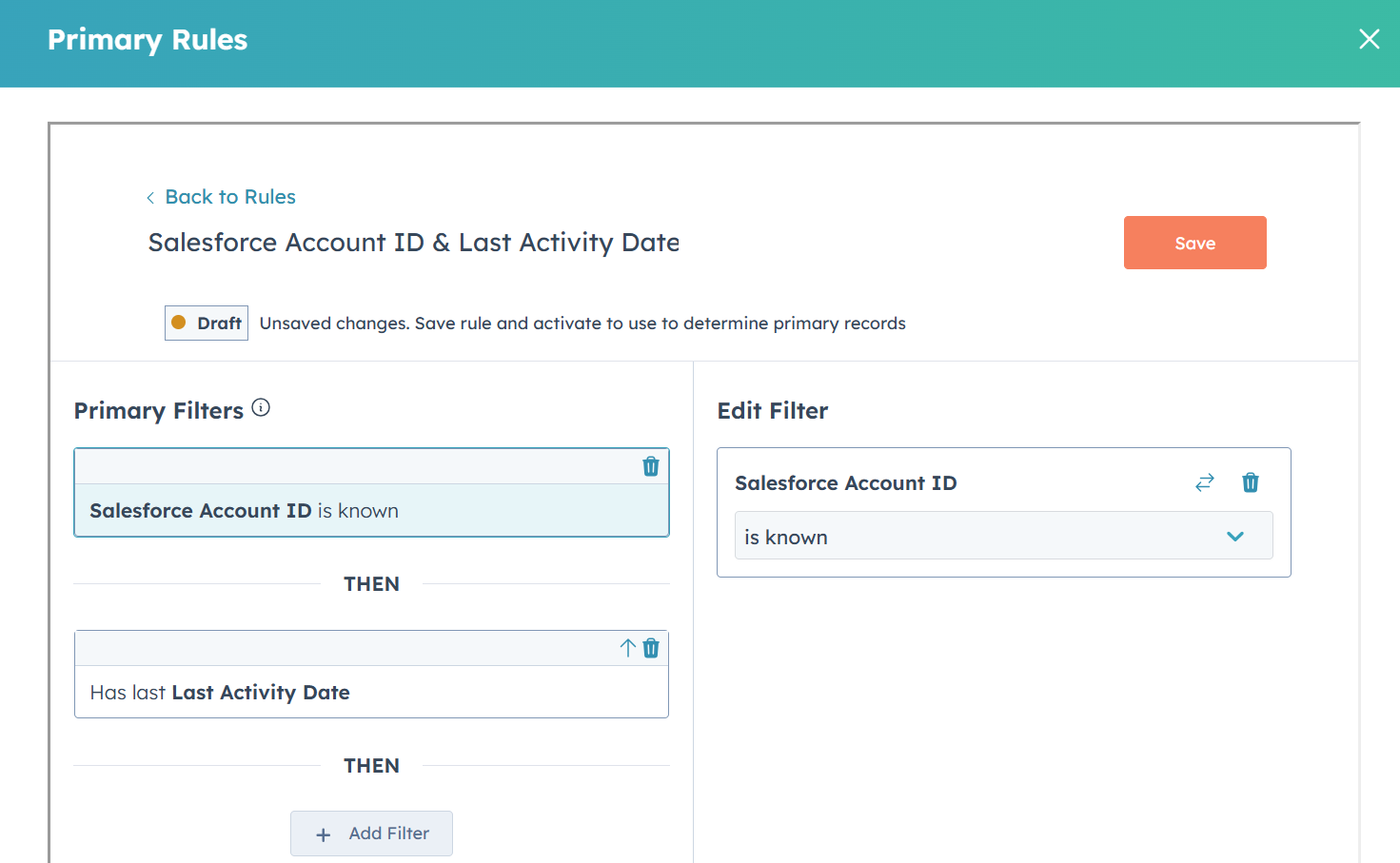
If one duplicate has a Salesforce Account ID and the other does not, make sure the synced record is retained as primary. Set a primary duplicate rule like:
Salesforce Account ID & Last Activty Date
- Salesforce Account ID is known
- Has last Last Activity Date
Merge Duplicate Contacts with HubSpot Salesforce Integration Enabled
Duplicate contacts are common in HubSpot, especially when you use it for marketing. HubSpot matches Salesforce leads and contacts on email address only, so two records for the same person with different email addresses are treated as two people. If a duplicate corresponds to just one Salesforce lead or contact record, you can safely merge it in HubSpot.
A. When Both Duplicate Contacts Sync with Salesforce
If both HubSpot contacts are linked to different Salesforce records, the duplicate exists in both systems. If you merge in HubSpot first, only the primary contact keeps syncing. The secondary contact's sync stops, and the duplicate stays in Salesforce. So work in this order:
Step 1: Merge in Salesforce first.
Choose the Salesforce record that is currently syncing with HubSpot as the primary. To find it, open the HubSpot contact, view all properties, and copy the Salesforce Contact ID or Salesforce Lead ID. If you pick a different primary, the HubSpot contact shows as no longer syncing, and you'll need to click Resync on its Salesforce Sync card.
Step 2: Decide what happens to the leftover HubSpot record.
This depends on your Salesforce integration settings:
- Automatically delete it (not advised). You can set HubSpot to delete a contact when its Salesforce record is deleted. Salesforce treats the secondary record of a merge as deleted, so the leftover HubSpot contact is removed. The risk is that you lose data that only exists in HubSpot, such as email engagement, form submissions, page views and unmapped properties. It gets deleted instead of combined into the surviving record.
- Merge it in HubSpot as well (recommended). Leave deletion sync switched off and let Koalify merge the leftover record into the synced one. That way the HubSpot history is kept.

Step 3: Let Koalify pick up the merge automatically.
After a merge in Salesforce, three things change on the leftover HubSpot record:
- Salesforce Deleted is set to true.
- The record stops syncing, so the last Salesforce sync date is outdated.
- Most importantly, the Salesforce Contact ID / Lead ID is removed.
With its Salesforce ID gone, the leftover record no longer conflicts with the synced record. Your duplicate rules (see section B below) now flag the pair, and the Koalify workflow merges it automatically. Salesforce decides which records are the same person, and HubSpot follows.
💡 Check this in your own portal: create a contact view filtered on Salesforce Deleted is true, and add columns for the last Salesforce sync date and Salesforce Contact ID. Open a record you recently merged in Salesforce and check its property history. The Salesforce ID should have been cleared. If it hasn't, Koalify will keep holding that pair back.
B. When Only One Contact Syncs with Salesforce
- Merge duplicates directly in HubSpot.
- Koalify makes it easy to detect duplicates in HubSpot by matching property values, even when contacts have different email addresses.
- Koalify also prevents merging contacts with different Salesforce Contact or Lead IDs when you use these IDs as extra filters in your duplicate rules. Add "Salesforce Lead ID matches property (or is unknown)" and "Salesforce Contact ID matches property (or is unknown)".
- When the IDs are the same, or empty on one or both records, the pair is flagged.
- When both IDs are filled in and different, the pair is not flagged until it's resolved in Salesforce.
Some example rules:
-
-
First Name, Last Name & Company Name Match
- First Name matches property First Name
- Last Name matches property Last Name
- Company Name matches Property Company Name
- Salesforce Lead ID matches property (or is unknown)
- OR Salesforce Contact ID matches property (or is unknown)
-
First Name, Last Name & Mobile Phone Match
- First Name matches property First Name
- Last Name matches property Last Name
- Mobile Phone matches property Mobile Phone
- Salesforce Lead ID matches property (or is unknown)
- OR Salesforce Contact ID matches property (or is unknown)
-
First Name, Last Name & Phone Match
- First Name matches property First Name
- Last Name matches property Last Name
- Phone matches property Mobile Phone
- Salesforce Lead ID matches property (or is unknown)
- OR Salesforce Contact ID matches property (or is unknown)
-
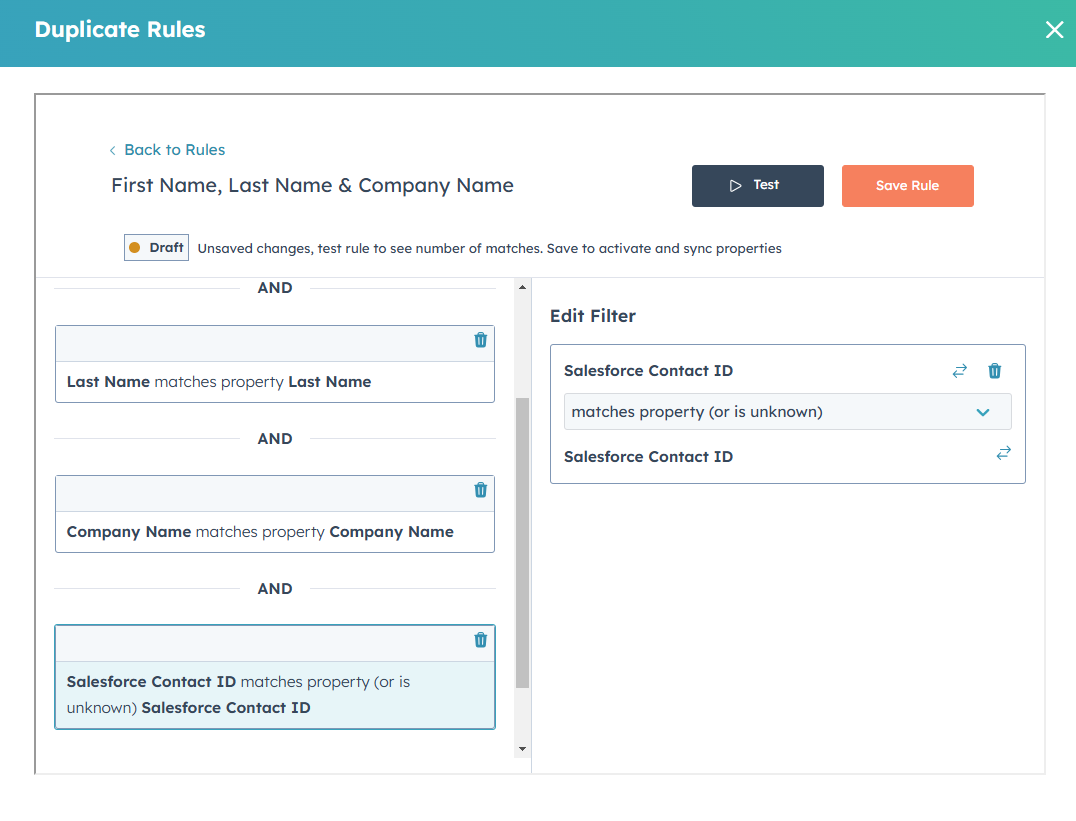
💡 When you add a new rule, activate it first so it only flags duplicates, and make sure your merge workflow doesn't enrol that rule yet. Review the matches, then add the rule to the workflow. The email domain rule is generally safe to merge automatically once you've excluded free email domains such as Gmail and Outlook.
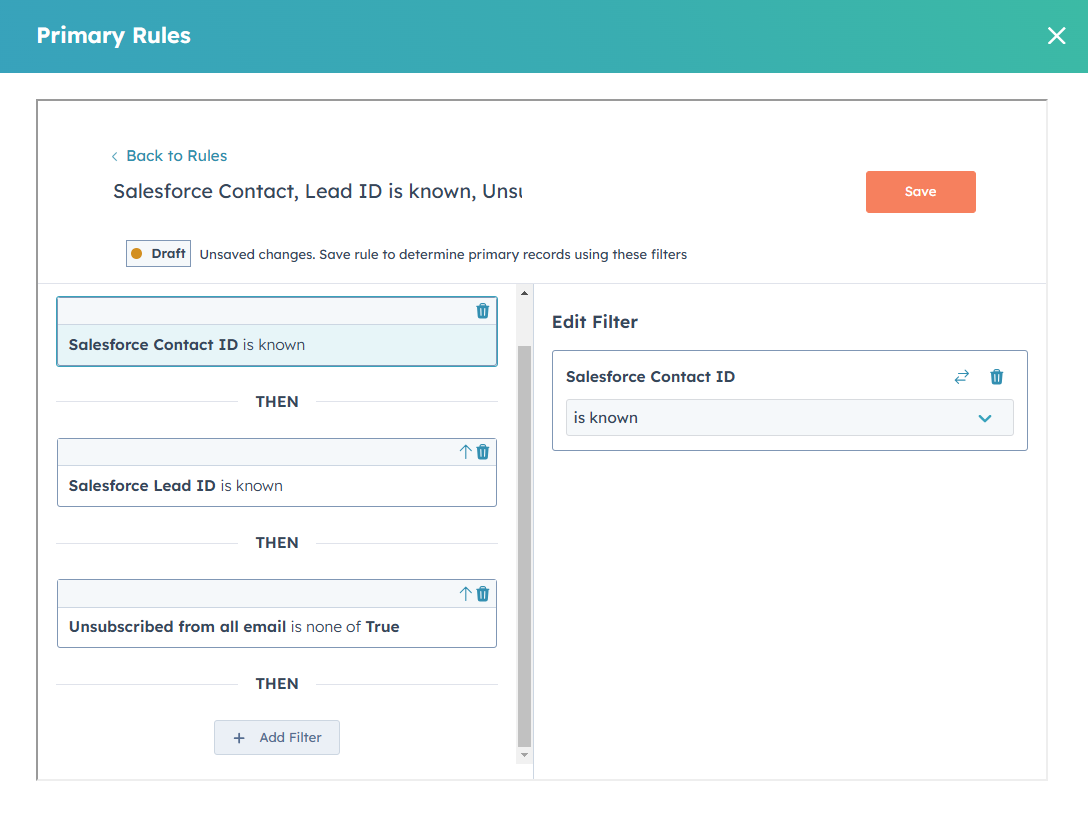
When merging contacts in HubSpot, it’s generally best to prioritize the contact synced to Salesforce as the primary record to ensure data continuity and proper synchronization. Koalify’s Primary Rules help you determine which contact to designate as the primary one during a merge.
For example, if you are syncing both leads and contacts, you can create a rule to automatically prioritize the contact with a Salesforce Contact ID or Salesforce Lead ID as the primary record. This approach ensures the merged record remains correctly linked to Salesforce and avoids disruptions in data sync:
-
-
Salesforce Contact, Lead ID is known, Unsubscribed from all is not true
- Salesforce Contact ID is known
- Salesforce Lead ID is known
- Unsubscribed from all email is none of True
-
Bulk merge Duplicate Contacts with the HubSpot Salesforce Integration Enabled
With these strict duplicate and primary rules in place, you can bulk merge duplicates, and keep merging new ones, with Koalify's workflow action. This includes the leftover records from Salesforce merges.
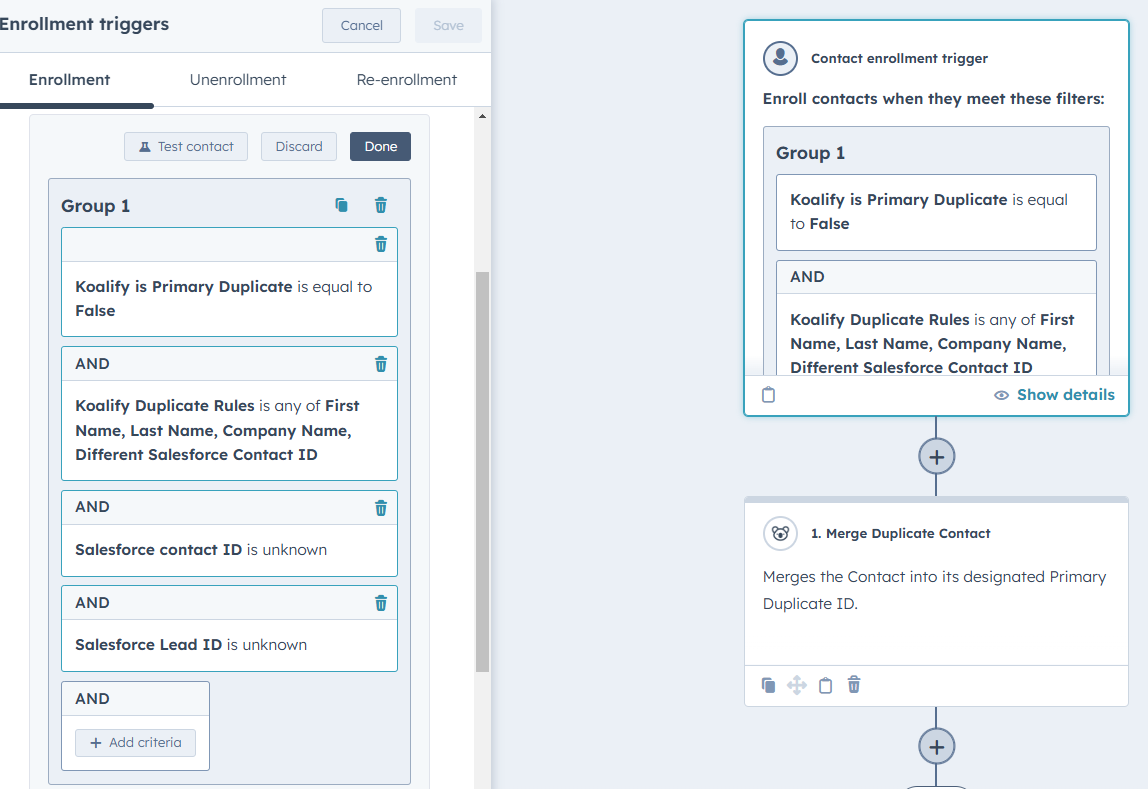
Set the following enrollment criteria:
-
- Koalify is Primary Duplicate is equal to False
- Koalify Duplicate Rules is any of [your Salesforce-safe rules, e.g. First Name, Last Name, Email Domain, Different Salesforce Contact ID]
- Optionally add extra criteria, so only records with no remaining Salesforce link are merged:
- Salesforce Contact ID is Unknown
- Salesforce Lead ID is Unknown
Then, add the Koalify Workflow Action: "Merge Duplicate Contact"
FAQ
Should I merge duplicates in Salesforce or HubSpot first?
If both records are synced with Salesforce, merge in Salesforce first and keep the record that's currently syncing with HubSpot. If only one record, or neither, is synced, merge directly in HubSpot.
What happens to the HubSpot contact after a merge in Salesforce?
If deletion sync is on, HubSpot deletes it. If it's off, the contact is marked Salesforce Deleted = true, stops syncing, and loses its Salesforce Contact or Lead ID. Koalify then detects it as a duplicate and merges it into the synced record.
Why can't I merge companies in HubSpot when Salesforce is connected?
HubSpot disables native company merges while the Salesforce integration is active with old Salesforce - HubSpot integration. Koalify's merge-like behaviour for companies works with the integration enabled and keeps the Salesforce Account ID intact.