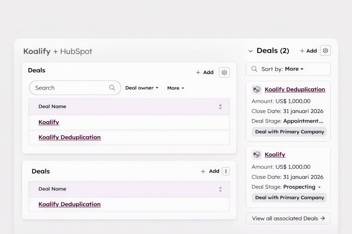


To merge duplicate Listings records in HubSpot: open the primary record, click Actions > Merge, select the duplicate, and confirm. For bulk merging, use the Koalify workflow action. HubSpot's native Duplicate Management tool does not cover the Listings object.
Real estate teams use the Listings object to track properties, agents, and availability in HubSpot. When the same listing appears twice, usually after a migration from a property management platform or a bulk import, it breaks quietly.
What makes this worse: HubSpot's Duplicate Management tool does not cover the Listings object. It scans contacts and companies automatically. Everything else, including duplicates for deals, tickets, Services, Projects, Appointments, Courses, Listings, and custom objects, you have to find yourself.
This guide covers every method for merging duplicate Listings records in HubSpot: a single manual merge, real-time cleanup as your team works, and automated bulk deduplication at scale.
Jump to:
- How to manually merge Listings records
- Why HubSpot's Duplicate Management tool does not cover Listings
- How to merge using Koalify CRM cards
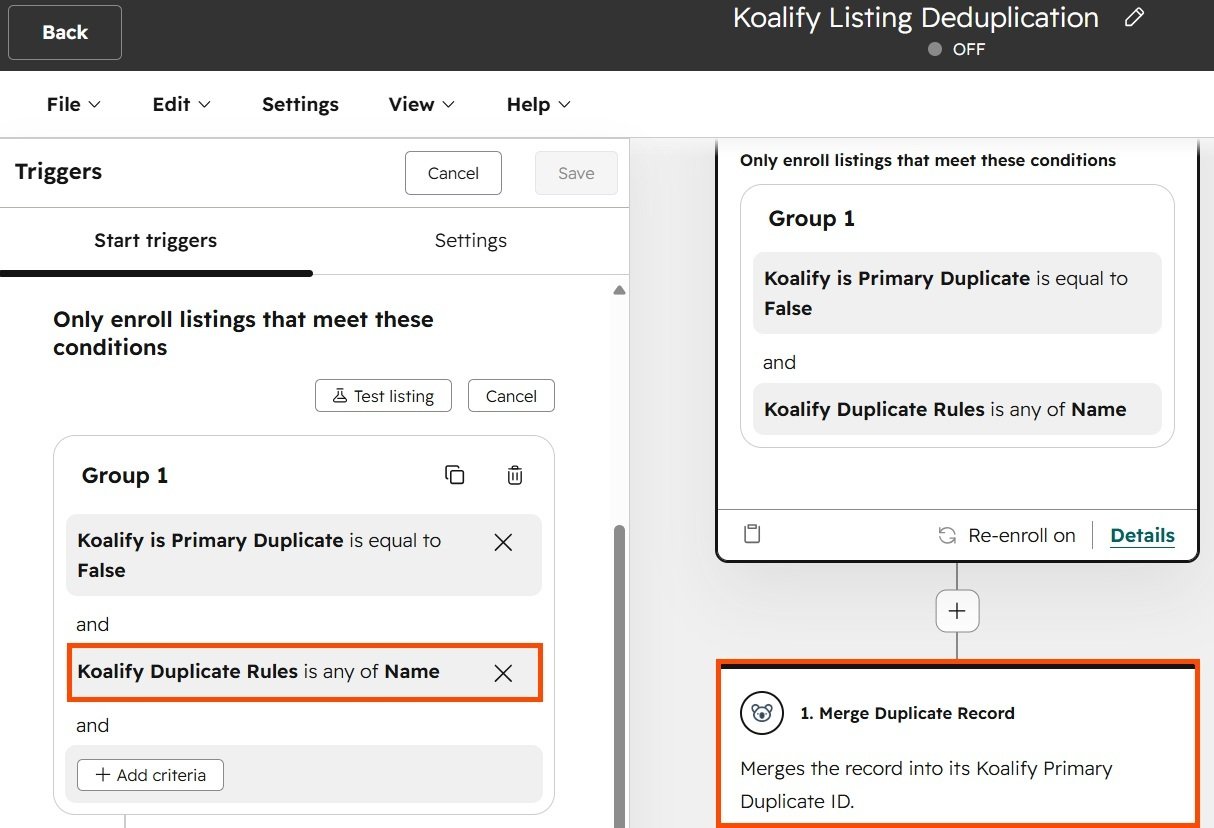
- How to bulk merge with the Koalify workflow action
- When merging Listings records becomes risky
- Comparison table and FAQ
How to Manually Merge Listings Records in HubSpot
For a small number of duplicates you have already identified, HubSpot's native merge works directly from the record page, the same way it does for contacts, companies, deals, and tickets.
Steps:
- Navigate to CRM > Listings and open the record you want to keep as the primary.
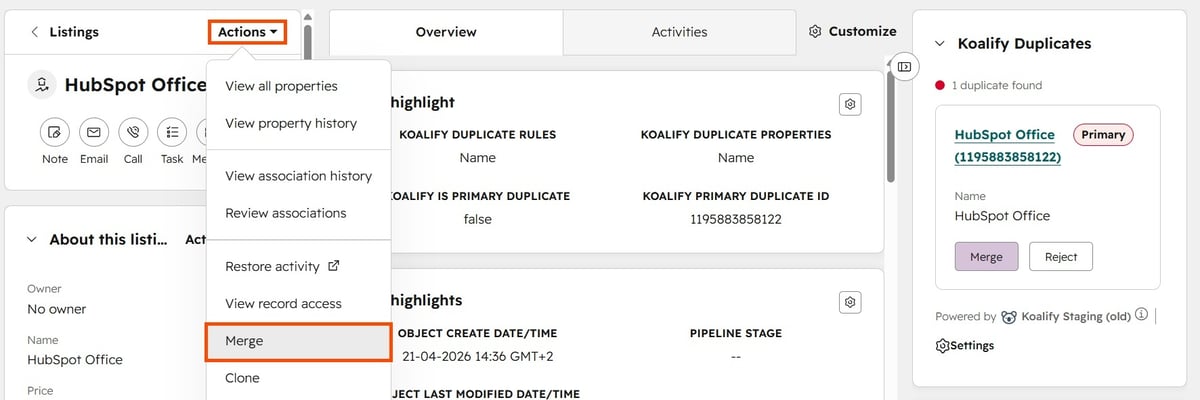
- In the top left, click Actions > Merge.
- Search for and select the duplicate Listings record to merge into the primary.
- Review the property values from both records and choose which to retain per property.
- Click Merge to confirm.
What happens when Listings records are merged in HubSpot:
- The primary record's property values are used by default. You can override this per property before confirming.
- All associations (contacts, companies, deals, tickets) from both records are consolidated onto the merged record.
- Activity timelines from both records are combined.
- The merge is permanent. There is no undo.
- The original record IDs remain accessible via the Merged Record IDs property.
✅ When to use this: You have spotted a handful of duplicates manually and know which record to keep. Fast and requires no additional tooling.
❌ Limitation: You have to find the duplicates yourself. This does not scale past a small number of records and gives you no visibility into how many more might exist across your portal.
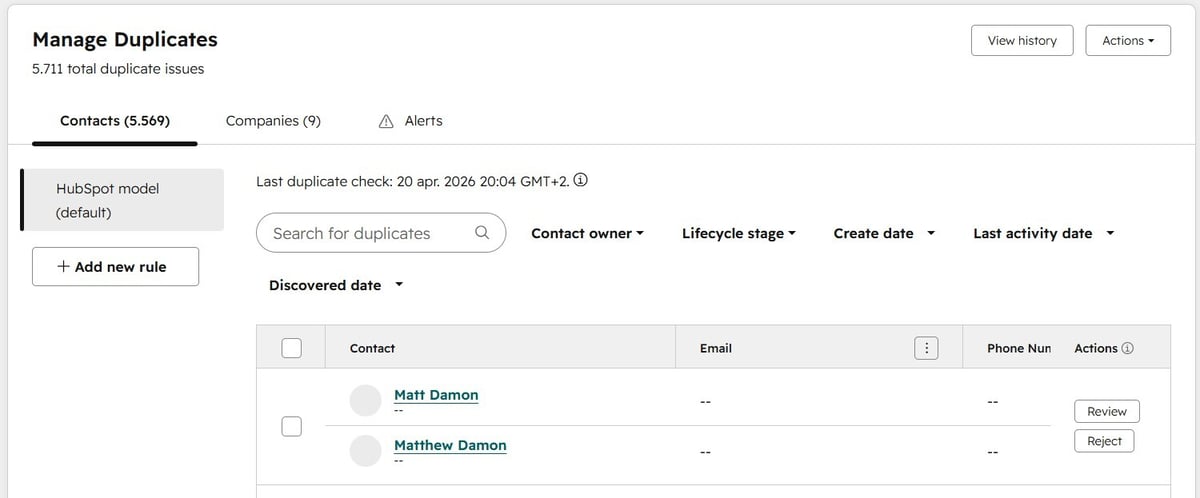
Why HubSpot's Duplicate Management Tool Does Not Cover Listings
HubSpot's Duplicate Management tool, accessible via Data Management > Data Quality > Manage Duplicates, automatically scans your CRM and surfaces potential duplicates for review.
The limitation: it only covers contacts and companies.
Deals, tickets, Services, Projects, Appointments, Courses, Listings, and custom objects are all excluded from HubSpot's automatic duplicate detection. That means:
- HubSpot will never flag a duplicate Listings record on its own
- There is no native bulk merge for Listings
- The only way to find Listings duplicates without a third-party tool is a manual record-by-record audit
This matters more than it might seem for Listings specifically. Listings records are frequently created during CRM migrations, bulk imports from property management platforms, or when a real estate integration pushes data into HubSpot without deduplication logic. Those are exactly the scenarios that generate duplicates at volume, and without automatic detection, they can accumulate for months without anyone noticing.
How to Merge Listings Duplicates Using Koalify CRM Cards
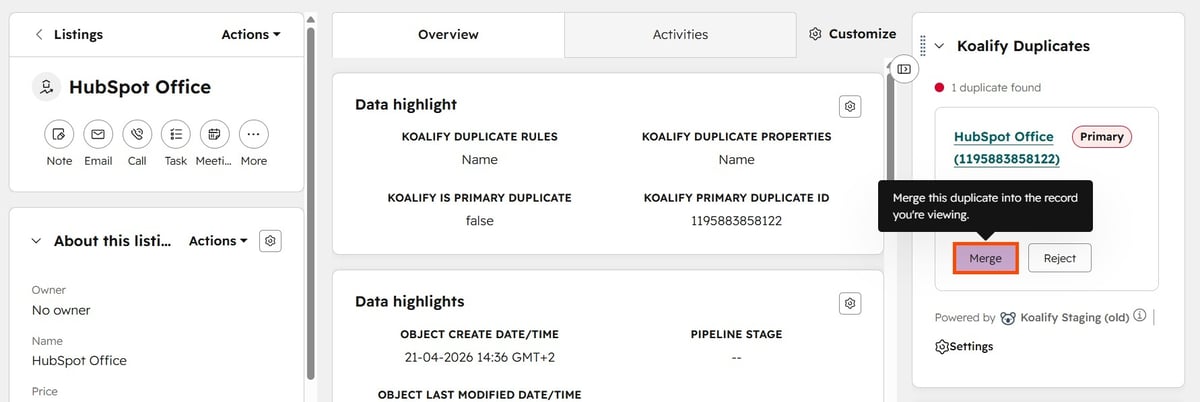
Koalify's CRM cards surface duplicate suggestions directly on the Listings record page inside HubSpot. Your team can spot and resolve a Listings duplicate without leaving the record or opening a separate tool.
You configure matching rules once in Koalify settings, for example matching on listing address and associated company, or listing name and pipeline stage. From that point on, whenever a duplicate is detected, it appears in the Koalify card on the right sidebar of the record.
Steps:
- Navigate to the Listings record you want to keep as primary.
- In the Koalify duplicate card, review the suggested duplicate.
- Click Actions > Merge to merge directly from the sidebar.
✅ When to use this: Your team regularly works through Listings records and you want duplicates surfaced and resolved in real time, as part of normal workflow, without a separate cleanup process.
❌ Limitation: One record at a time. Not the right approach for clearing a large backlog.
How to Bulk Merge HubSpot Listings Duplicates with the Koalify Workflow Action
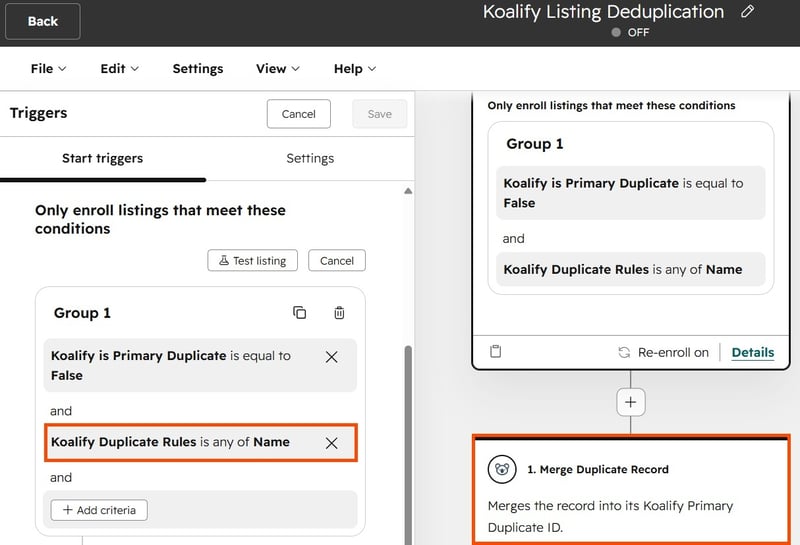
When you have a large volume of duplicate Listings records (from a migration, a bad import, or an integration running without deduplication logic) the Koalify workflow action is the right approach. It runs entirely inside HubSpot, merges at scale, and can be left running to prevent new duplicates automatically.
Steps:
1. Configure matching rules for Listings in Koalify
Go to your Koalify settings and configure the matching logic for the Listings object. Choose the properties that define a duplicate for your use case, typically listing address combined with owner, or pipeline. Set your primary record rules: which record wins when property values conflict.
2. Create a Listings-based workflow in HubSpot
- Navigate to Automations > Workflows
- Click Create workflow > From scratch
- Select the Listings object type, choose a blank workflow, click Next
3. Add the Koalify merge action
- Click + to add a workflow action
- Search for "Koalify"
- Select the Merge Duplicate action for Listings
- Click Save
4. Enrol Listings records
- One-time bulk cleanup: use manual enrolment. Filter for all Listings records (or a segment likely to contain duplicates) and enrol them all at once. Koalify processes approximately 1,000 merges per hour.
- Ongoing prevention: set an automated trigger so any new Listings record created by an import or integration is automatically checked and merged if a duplicate is found.
✅ When to use this: You have a backlog of Listings duplicates to clear, or you have a continuous source of new duplicates and want automated ongoing prevention.
❌ Limitation: Requires HubSpot Professional or Enterprise to access workflows. Initial rule configuration takes around 10 to 15 minutes.
When Merging Listings Records Becomes Risky
Most Listings merges are straightforward. A few scenarios are worth checking before you confirm.
The same address for different listing types.
A property address might legitimately appear twice, once as a sales listing and once as a rental. Match on address and listing type before treating records as duplicates.
Both records have active enquiries or deals attached.
Deals and contacts associated with both records will consolidate onto the merged record. If the two records represent separate listing engagements that were mistakenly split rather than true duplicates, merging will combine those associations in ways that are difficult to untangle.
Listings created by an external integration.
If a property management platform, real estate CRM, or listing syndication tool is generating your Listings records in HubSpot, confirm whether it will recreate the deleted record after the merge. If it will, you need deduplication logic at the source or at the integration layer. Koalify handles what gets through into HubSpot, but it cannot stop upstream recreation on its own.
Active listings mid-transaction.
For listings with open deals or active buyers, check with the relevant team before merging. The merge is permanent, and consolidating mid-transaction records can shift deal associations, ownership, and activity history unexpectedly.
Choosing the Right Merge Method for HubSpot Listings
| Method | Best for | Scalability |
|---|---|---|
| Manual merge (record page) | Small number of known duplicates | Low |
| Koalify CRM cards | Real-time cleanup as your team works | Low to medium |
| Koalify workflow action | Large backlogs and ongoing prevention | Very high |
For most teams: start with a one-time bulk cleanup using the Koalify workflow action, then leave the workflow running so new duplicates are caught automatically as they come in.
If your duplicate problem extends beyond Listings to contacts, companies, or deals — which it often does when the root cause is a migration or property management integration — Koalify handles all of them. You set up a separate workflow per object using the same approach.
Install Koalify free and see your duplicate Listings records in minutes
Frequently Asked Questions
Can you merge Listings records in HubSpot?
Yes. HubSpot supports manual merging of Listings records from the record page using Actions > Merge. For bulk merging, HubSpot's built-in tools do not cover the Listings object. You need a third-party tool like Koalify, which handles Listings deduplication via workflow automation inside HubSpot.
Does HubSpot automatically detect duplicate Listings records?
No. HubSpot's Duplicate Management tool only scans contacts and companies. Listings, deals, tickets, Services, and custom objects are not included in automatic duplicate detection. To find and merge Listings duplicates, you need to audit manually or use a dedicated deduplication tool.
What happens to deals and associations when Listings records are merged?
All associations (contacts, companies, deals, tickets) from both records are consolidated onto the primary merged record. Activity timelines from both records are combined. The merge is permanent and cannot be undone.
Can I automate duplicate merging for HubSpot Listings records?
Yes, with Koalify. You configure matching rules once in Koalify settings, then use the Koalify workflow action in a HubSpot workflow to merge duplicates automatically, either as a one-time bulk cleanup or as ongoing prevention triggered whenever a new Listings record is created.
What is the difference between the HubSpot Listings object and custom objects?
Listings is one of HubSpot's activatable standard objects, built by HubSpot and available across accounts but inactive by default. Custom objects are objects you define yourself with your own schema, available on Enterprise plans. Both support manual merging from the record page, and both are supported by Koalify for automated bulk deduplication.
Is a workflow required to bulk merge Listings duplicates in HubSpot?
If you are using Koalify, yes. The bulk merge runs via a HubSpot workflow action, which requires at least one Professional-tier Hub. There is no native HubSpot bulk merge option for Listings records.